How to Install a VPN on Firestick
Introduction
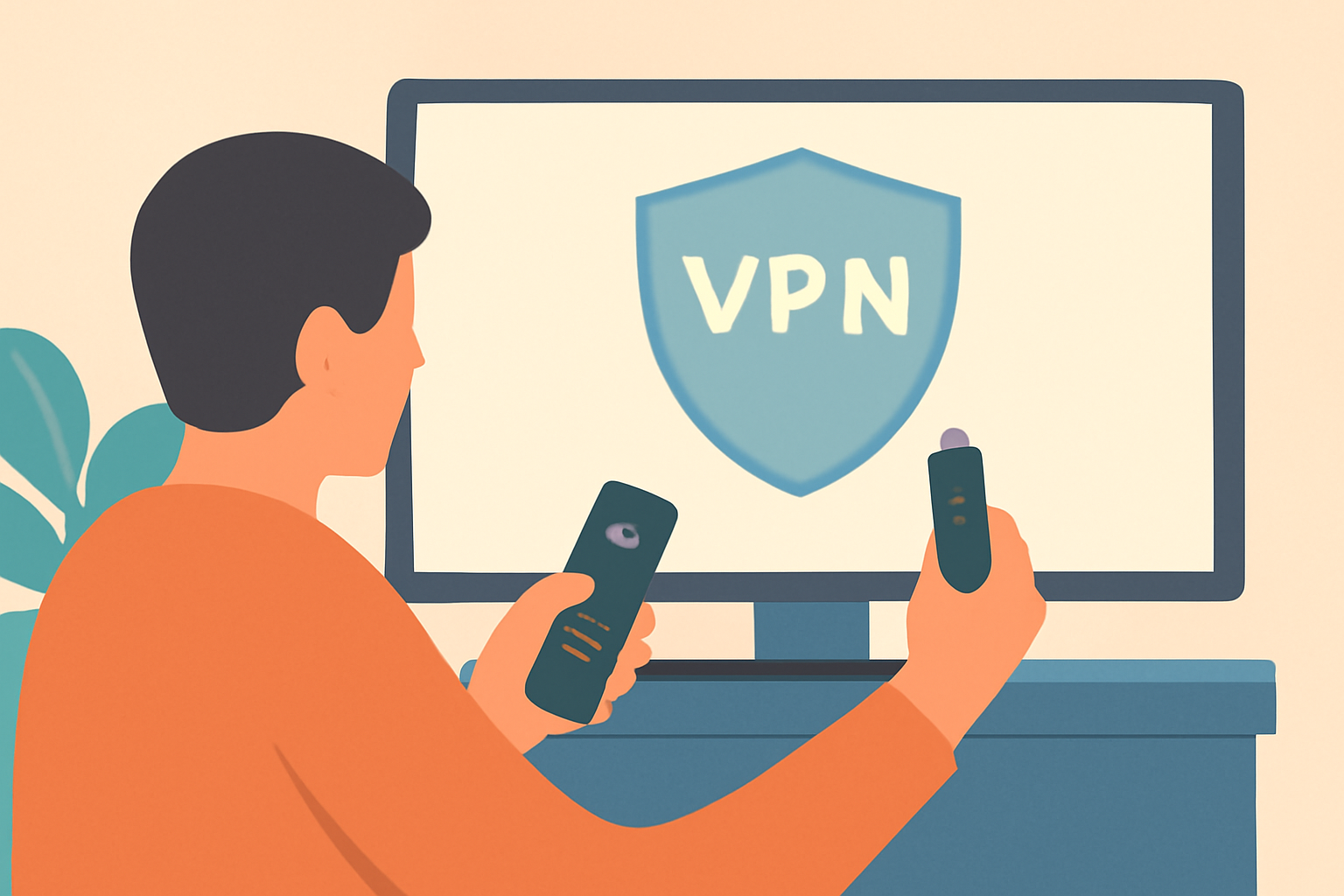
If you want to protect your privacy and access more content on a Firestick, you can install a VPN from the Amazon Appstore. Using a trusted service keeps your streaming activity more private and helps bypass regional restrictions when permitted. This guide walks through installing from official sources, signing in, connecting, enabling a kill switch, and verifying your setup with basic troubleshooting.
Descriptive heading: Choose a reputable VPN and prepare
- Start with a reputable VPN provider that offers an official Firestick app. The Amazon Appstore has several vetted options, so avoid third party APKs and stick to official apps.
- Check that the provider supports Firestick / Fire TV devices and offers features like a kill switch and DNS leak protection. For extra assurance, read independent reviews or provider pages on their security practices.
- If you already know a provider you want, verify it is listed in the official app store before installing. You can also consult our Best VPN for Firestick guide to compare options.
- Ensure your Firestick is updated to the latest OS version. A current system helps the VPN work more reliably and reduces compatibility issues. You may also want to review network setup tips such as Ethernet vs Wi-Fi depending on your home network.
Descriptive heading: Prepare your account and payment
- Sign in to the Amazon account linked to your Firestick. Installations from the Appstore use this account to authorize the app.
- If the VPN requires a subscription, complete the plan in the provider’s official site and sign in within the app after installation. This keeps your streaming privacy consistent across devices.
- For Android based devices including Firestick, you want a VPN that supports Android on TV devices. See our guidance on the Best VPN For Android: Phones, Tablets & TV Boxes for more context.
Descriptive heading: Install from the Amazon Appstore (official apps only)
Sub-section: Find and install
- On the Firestick home screen, go to the Find option and select Appstore. Use the search function to type the VPN name and locate the official app.
- Choose the VPN app from the developer listed as the official provider. Click Get or Install to download. The process is similar to installing any official app on Android based devices and Firestick.
- Once installed, open the app. You will be prompted to sign in with your VPN account credentials. If you do not have an account yet, you can typically sign up on the provider’s site and then return to the app to sign in.
Sub-section: Sign in and initial setup
- Sign in using the account credentials you created with the VPN provider. You may be asked to allow device administrator permissions; grant these only if you trust the app.
- Some providers offer a quick connect option as soon as you sign in. If you prefer, skip this and manually pick a server location later.
- When you first launch the app, you might see a privacy policy prompt. Review it and proceed if you are comfortable. You can revisit settings once you are connected.
Descriptive heading: Connect to a server and verify connection
- In the VPN app, select a preferred server location. If your goal is privacy first or region specific content, choose a server closest to your goal to minimize latency.
- Tap Connect and wait for the VPN status to show as connected. A correctly connected VPN typically shows a protected shield icon or a connected status within the app.
- To verify the connection, visit a site that shows your IP address or check your provider’s diagnostic tool if the app includes one. Also confirm you are not leaking DNS by using a test site or app that checks DNS requests.
- For additional context on network behavior, you can read about how DNS affects streaming and privacy in our article about DNS for Streaming: Does Changing It Actually Help? and compare with related guidance in our pages on privacy and networking.
Descriptive heading: Enable a kill switch and test for leaks
- Enable the kill switch feature in the VPN app if it is available. The kill switch prevents your device from sending traffic outside the VPN tunnel if the connection drops.
- After enabling the kill switch, run a leakage test to confirm there are no IP or DNS leaks when the VPN is active. If you see an IP or DNS address outside the VPN, recheck the connection or switch to a different server.
- If your VPN app does not offer a native kill switch, review the provider’s recommended workaround or consider a different official app that includes this essential safety feature.
Descriptive heading: Troubleshooting common issues on Firestick
Sub-section: App won’t install or sign in
- If the app fails to install, verify you are using an official app from the Amazon Appstore and that your Firestick has enough available storage. Restart the device and try again.
- If sign in fails, ensure your VPN subscription is active on the provider’s site and that you entered the correct credentials. If you use two factor authentication, complete that step before attempting sign in again.
- If the app reports server errors, try a different server location or wait a few minutes and retry. Some providers maintain status pages that indicate outages.
Sub-section: Connection issues and speed
- If the VPN seems slow, test with a nearby server location or a different protocol if the app provides protocol options. Some providers publish guidelines on typical speed impacts at various server distances.
- If you suspect throttling, consider testing with a different app or server to see if performance improves. You can also review our piece on Does a VPN Slow Down Internet for context.
- Confirm that your base internet connection is adequate for streaming. If your home network uses Wi-Fi, you may benefit from Ethernet for stability as discussed in Ethernet vs Wi-Fi for Streaming: Which Should You Use?.
Sub-section: Leaks and privacy concerns
- Run a leak check while connected to the VPN. If leaks persist, try a different server or contact your provider’s support for guidance. For broader privacy considerations and options, you can browse our VPN & Privacy resources.
- Avoid using unverified or free VPN services on Firestick. Our guide on Are free vpns safe? What you should know explains why free offerings may carry risks.
Descriptive heading: Quick checks and best practices
- Confirm the VPN is running when you start streaming. Some Firestick apps may require you to stay in the app for the connection to persist.
- Use official apps only and avoid sideloading from third party sources. Official apps ensure you receive security updates and reliable support.
- Keep your Firestick, VPN app, and any related apps up to date. Regular updates help maintain compatibility and security.
- If you plan to use your VPN beyond Firestick, consider the same provider’s app for other Android devices. Our guide on the Best VPN For Android: Phones, Tablets & TV Boxes can help you widen coverage across devices.
Descriptive heading: Realistic expectations and alternatives
- A VPN can extend privacy protection and help with geo content access, but it does not guarantee access to every streaming service. Some providers actively block VPNs on certain platforms or services.
- If Netflix or another service blocks your VPN, you may try a different server or consult the provider’s Netflix specific guidance. Our article on the Best VPN for Netflix That Actually Works discusses practical options.
- If you want to understand the broader streaming setup, look into our Live TV Streaming and IPTV sections for context on how VPNs interact with various delivery methods.
Descriptive heading: Quick comparison of features to consider
| Feature | Why it matters | How to verify on Firestick |
|---|---|---|
| Kill switch | Prevents leaks if the VPN drops | Enable in app settings and test with a simulated disconnect |
| DNS leak protection | Keeps DNS requests private | Run a DNS leak test while connected |
| Server options | More locations for privacy and access | Browse the server list and pick a nearby or specialized location |
| Logging policy | Privacy and data handling | Read the provider’s policy in the app or website |
| Native Firestick app | Better stability on TV devices | Confirm the app is listed as official in the Amazon Appstore |
Descriptive heading: Do I need a VPN for Firestick? Quick guide
- If you stream content from apps that are geo restricted or publicly available but prefer extra privacy, a VPN is a sound option. For a concise overview, see our Do I Need a VPN for Firestick? Quick guide for a practical summary.
- Always choose an official app from the Amazon Appstore to ensure security updates and support. For a broader selection of devices, our Best VPN For Android Devices page can help you compare cross platform options.
Descriptive heading: Where to go for more information
- If you want context on streaming options and device setup, explore our Device Guides section and the VPN & Privacy section. For streaming specifics, check our Live TV Streaming (section) and IPTV (section) pages.
- For independent hardware and service context, consult external resources like Wi-Fi Alliance and general hardware guidance on official product pages and standards bodies.
Closing: Practical wrap up
Installing a VPN on a Firestick using official apps from the Amazon Appstore is straightforward when you stick to trusted providers. Sign in, connect to a suitable server, enable the kill switch, and then verify the connection with a DNS and IP check. If you run into issues, the troubleshooting steps above help you isolate problems, switch servers, or adjust settings. Remember to review privacy policies and ensure you are using a reputable service that aligns with your streaming and privacy goals. For ongoing learning, you can compare providers with our guides and keep your Firestick and apps up to date.
Bottom line
Using a reputable VPN on a Firestick can protect your privacy and expand your streaming options. Always install the official app from the Amazon Appstore, sign in with a valid account, enable a kill switch, and verify there are no leaks. If you run into problems, recheck server selection and app permissions, then consult the provider’s support resources or our troubleshooting tips.
Frequently Asked Questions
Do I need a VPN on Firestick?
Yes, a reputable VPN helps protect privacy and access geo restricted content.
Can I use a free VPN on Firestick?
Free VPNs often have limitations and may pose risks; choose reputable paid services.
What is a kill switch and why enable it?
A kill switch blocks internet if the VPN drops, preventing leaks.
This is an independent editorial site. We do not host, sell, or distribute any streams or subscriptions. Always verify that a service is properly licensed in your country. Some links may earn us a commission at no cost to you.