How to Install a VPN on a Firestick to Stream Safely
Why use a VPN on Firestick
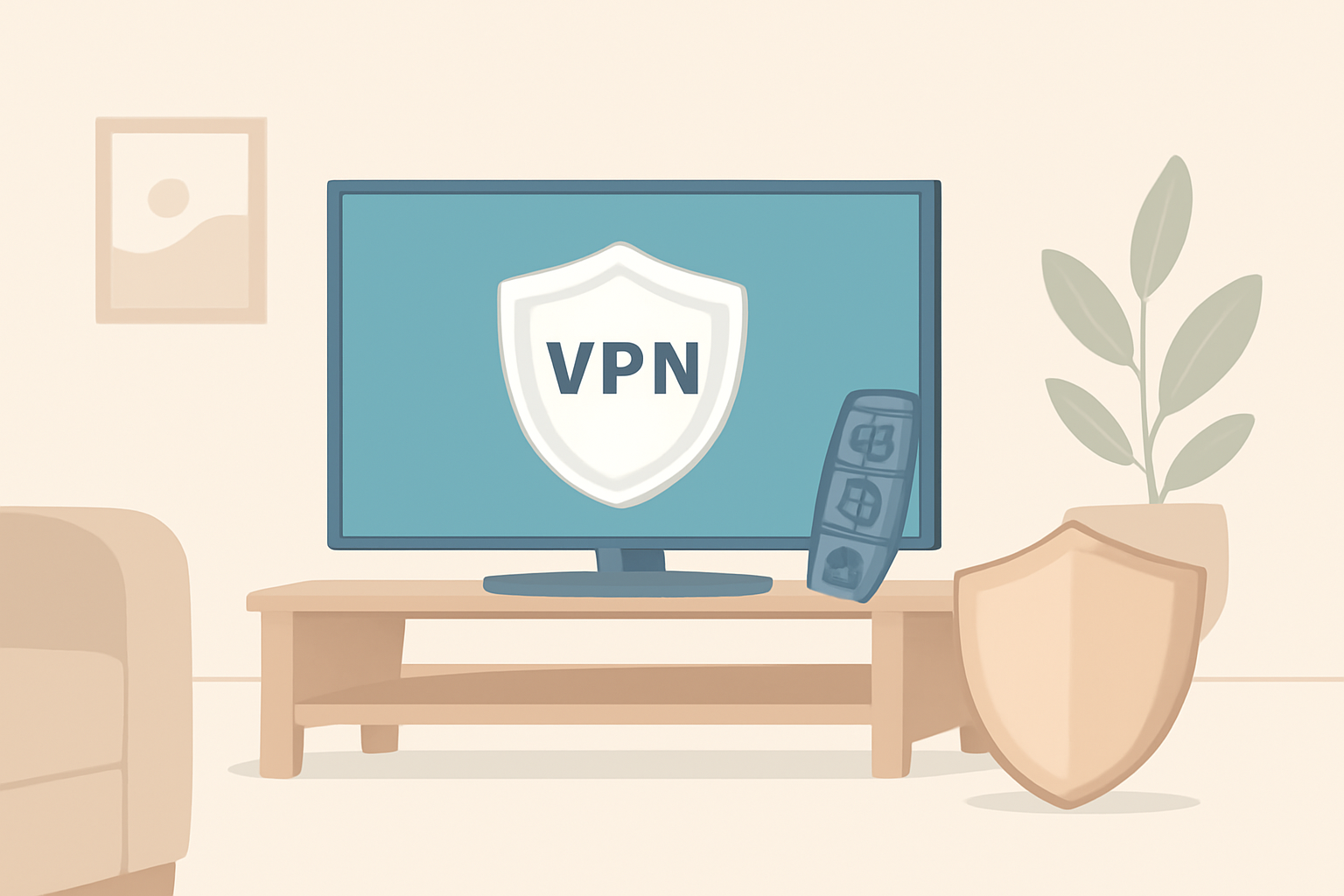
If you own a Firestick and enjoy streaming from a range of apps, a reputable VPN adds a layer of privacy to your online activity and can help bypass geo restrictions for legitimate streaming services. You should only install official, licensed apps from the Amazon Appstore to keep your device safe and supported. Using a VPN is not a substitute for a good subscription; it is a tool to protect your connection and give you more control over how you access content. For readers weighing the pros and cons, our guide on Does a VPN Slow Down Internet explains typical speed impacts and how to mitigate them, while you can read about the broader privacy landscape in our VPN & Privacy section.
Preparations: choosing the right VPN
Before you install, pick a reputable VPN provider that offers a Firestick friendly app in the Amazon Appstore. Look for providers with clear privacy policies, audited security practices, and reputable customer support. The Firestick has limited processing power, so you want a service with streamlined apps designed for media devices. If you are exploring options, check our article 3 Best VPNs for Firestick & Fire TV for a shortlist of providers with strong streaming performance and licensing that fits your needs. You can also consider the broader ecosystem by looking at Best VPN For Android Devices which covers app compatibility and setup nuances across Android based devices.
Step by step installation from the Amazon Appstore
This section guides you through a clean setup using official apps only. Avoid sideloading or third party sources on Firestick to minimize risk of malware or unsupported features.
Step 1: Navigate to the Amazon Appstore on Firestick
From the Firestick home screen, go to the Apps area or search for the Amazon Appstore. If you do not see the app, you may need to update your device’s firmware or enable app installation from unknown sources. It is best to stay within the official store to ensure you receive updates and support.
Step 2: Search for the VPN app
Use the search function to look for the VPN provider you chose. Enter the provider’s name and select the official app entry. It is important to verify that the app is published by the official company name rather than a third party with a similar icon.
Step 3: Install the app
On the provider’s app page, choose Install. The download should start immediately and the app will be added to your Firestick library once the download completes.
Step 4: Sign in with your licensed account
Open the VPN app after installation and sign in with the credentials you received when you purchased a subscription. If you do not yet have a subscription, visit the provider’s official site to sign up. Do not use trial versions from untrusted sources.
Step 5: Connect to a VPN server
In the app, select a VPN server location that matches your streaming needs. If you want to access a service from a specific country, pick a server in that country. For general privacy or to hide your IP while browsing, a nearby server can offer better performance. When you build a routine, you may want to check the provider’s recommended streaming servers as a starting point.
Step 6: Enable a kill switch (if available)
A kill switch stops all traffic if the VPN connection drops. This protects your real IP from exposure. In the app settings, enable the kill switch if the feature is present. If you do not see a kill switch option, consult the provider’s help center for guidance. This is common among premium services that emphasize security.
Step 7: Verify your connection and IP address
- After connecting, verify that the VPN is active. You can use the provider’s built in status indicator or visit a site that shows your apparent IP. If you see the VPN’s server location rather than your home IP, you are online through the VPN.
- For streaming privacy, confirm that the VPN is not leaking DNS information. See our DNS related guides for context and verification steps, such as Best VPN for Netflix That Actually Works and our general streaming guidance.
Basic troubleshooting and common issues
If you encounter problems during installation or use, try these steps in order:
Problem: App won’t install or update
- Check your Firestick storage. Uninstall unused apps if space is tight.
- Ensure your Firestick firmware is current. An outdated OS can prevent newer apps from installing.
- Revisit the official provider page to confirm you are using the official app and available regions.
Problem: VPN connects but streaming still shows the wrong region
- Switch to a server in the desired location. Some services block certain servers; try a nearby alternative.
- Clear app data or reinstall the VPN app if persistent issues occur.
Problem: Kill switch not engaging
- Make sure the VPN app has permission to control network traffic. In some cases you may need to grant admin rights or adjust device permissions.
- If the feature is absent in the app, refer to the provider’s help center for alternative privacy controls.
Problem: DNS leaks or IP leaks
- Reconnect to a different server or enable the DNS protection feature if the VPN offers it.
- Verify with external checks and make sure there are no open DNS requests leaking your real address. If you want to explore related topics, see our piece on DNS for Streaming: Does Changing It Actually Help? for practical considerations and testing tips.
Practical tips for smoother performance
- Use a wired connection if possible. Ethernet on a connected TV device can stabilize streaming more reliably than Wi Fi. See our discussion on Ethernet vs Wi Fi for Streaming: Which Should You Use? for a deeper comparison that applies to Firestick setups.
- Choose servers thoughtfully. High traffic can slow down your connection. If you experience slowdowns, switch to a less crowded server or one optimized for streaming.
- Keep the VPN app updated. Regular updates fix bugs and improve compatibility with media apps.
Security and privacy considerations
A VPN on Firestick helps conceal your activity from your local network and your ISP, but you should combine it with other best practices. Use a trusted provider with a transparent privacy policy and know what data the provider collects. Our article Are free vpns safe? What you should know explains why free offerings often compromise privacy and performance. For streaming oriented privacy, pairing a VPN with secure DNS practices can be beneficial. If you want to learn more about DNS choices for streaming, our DNS guide can help you evaluate options and their impact on performance.
When to consider alternatives
If you use a Firestick for streaming and want to understand the broader landscape, consider evaluating different VPN support across devices and how it affects performance and reliability. The concept extends beyond Firestick because you can apply similar principles to Android devices and other streaming boxes. For a broader view of recommended options, check our guide on the best Android VPNs or the Firestick specific recommendations. See also the general guidance in our VPN & Privacy hub to understand the privacy and licensing aspects that influence choice.
Internal and external references in practice
- You can see how this approach aligns with broader streaming strategies in our piece comparing streaming services and privacy implications, including a look at how high quality VPNs affect streaming performance. For a technical background on why VPNs can affect speed, see Does a VPN Slow Down Internet and consult standard references like Wi Fi Alliance.
- For service specific guidance on Firestick and Fire TV, our article 3 Best VPNs for Firestick & Fire TV provides curated options and setup notes.
- If you want to cross reference with general Android device coverage, our Best VPN For Android Devices piece covers app compatibility and performance expectations across Android ecosystems.
Realistic expectations: licensing and service quality
Only official, licensed apps from trusted providers should be used on devices like Firestick. This ensures you receive timely updates, official support, and a warranty on the app experience. The goal is to guard privacy without compromising reliability or legality. When evaluating a VPN, consider the provider’s streaming compatibility, privacy policy, and security features such as a kill switch and leak protection. Also remember that some streaming services attempt to block VPN usage. A reputable service will publish guidance on which servers work with major platforms and will offer troubleshooting steps if content is not accessible.
Do I need a VPN for Firestick? Quick guide
If privacy matters and you want more control over your streaming destinations, a VPN can be a practical tool on Firestick. It is not a silver bullet for circumventing licensing restrictions, so use it with lawful intent. For a quick overview, you can read our concise guide on whether a VPN is needed for Firestick in our related article and then dive into the installation walkthrough here.
How to verify you have a solid setup
- Confirm the VPN connects consistently and the kill switch blocks leakage when you disconnect.
- Test IP address and DNS to verify there are no leaks. For practical testing tips, consult the related articles on leaks and DNS behavior.
- Try a streaming app to ensure the content loads reliably while the VPN is active.
Troubleshooting fast references
- If the app won’t install, recheck compatibility, storage space, and firmware version. Install only from the official appstore to minimize risk.
- If you cannot connect, check the server status with your provider and switch locations.
- If you see buffering, consider server load and alternate servers optimized for streaming.
Quick reference table: VPN features for Firestick
| Feature | What it means for Firestick users | Why it matters |
|---|---|---|
| Official App availability | Use only apps published by the provider in the Amazon Appstore | Ensures updates and security; reduces risk of fake apps |
| Kill switch | Stops all traffic if VPN drops | protects privacy in case of disconnects |
| DNS leak protection | Prevents real DNS requests from leaking | preserves anonymity and prevents exposure of your location |
| Streaming optimized servers | Servers intended for high bandwidth and stable video | Minimizes buffering and improves reliability |
| Cross device compatibility | Apps available on Android and other platforms | Lets you reuse the same account across devices like phones and tablets |
| Customer support | Access to official support channels | Helps resolve issues quickly and accurately |
Closing thoughts
Installing a VPN on a Firestick is a practical step for people who want more control over their streaming privacy and access to geo enhanced content, but it must be done with care. Use official apps from the Amazon Appstore, enable a kill switch if available, verify no leaks after connection, and follow a solid troubleshooting plan if things go awry. If you are weighing options, consider reading our overview on the best VPNs for Firestick and the privacy implications in our guidance library. For broader context on streaming infrastructure and privacy, you can also explore our sections on Live TV Streaming and IPTV.
Bottom line
A properly configured VPN on Firestick provides a reliable privacy layer and can improve your streaming options when used with licensed services. Stick to official apps, verify settings, and keep an eye on potential slowdowns. With careful setup, you gain privacy without sacrificing the experience you expect from your Firestick.
Frequently Asked Questions
Do I need a VPN on Firestick for privacy?
A VPN adds an extra layer of privacy by masking your IP address and encrypting traffic, which helps protect data on public networks and can help access geo restricted streaming when used with licensed apps.
Will a VPN slow down my Firestick streaming?
Some VPNs may reduce speed due to encryption and server distance. Choosing a provider with optimized servers for streaming can minimize slowdowns. See our notes on VPN speed impacts.
Is it safe to use free VPN apps on Firestick?
Free VPNs often have limitations and may log data or show ads. It is better to rely on reputable paid services from licensed providers.
This is an independent editorial site. We do not host, sell, or distribute any streams or subscriptions. Always verify that a service is properly licensed in your country. Some links may earn us a commission at no cost to you.