Firestick Remote Not Working Quick Fixes and Setup Guide
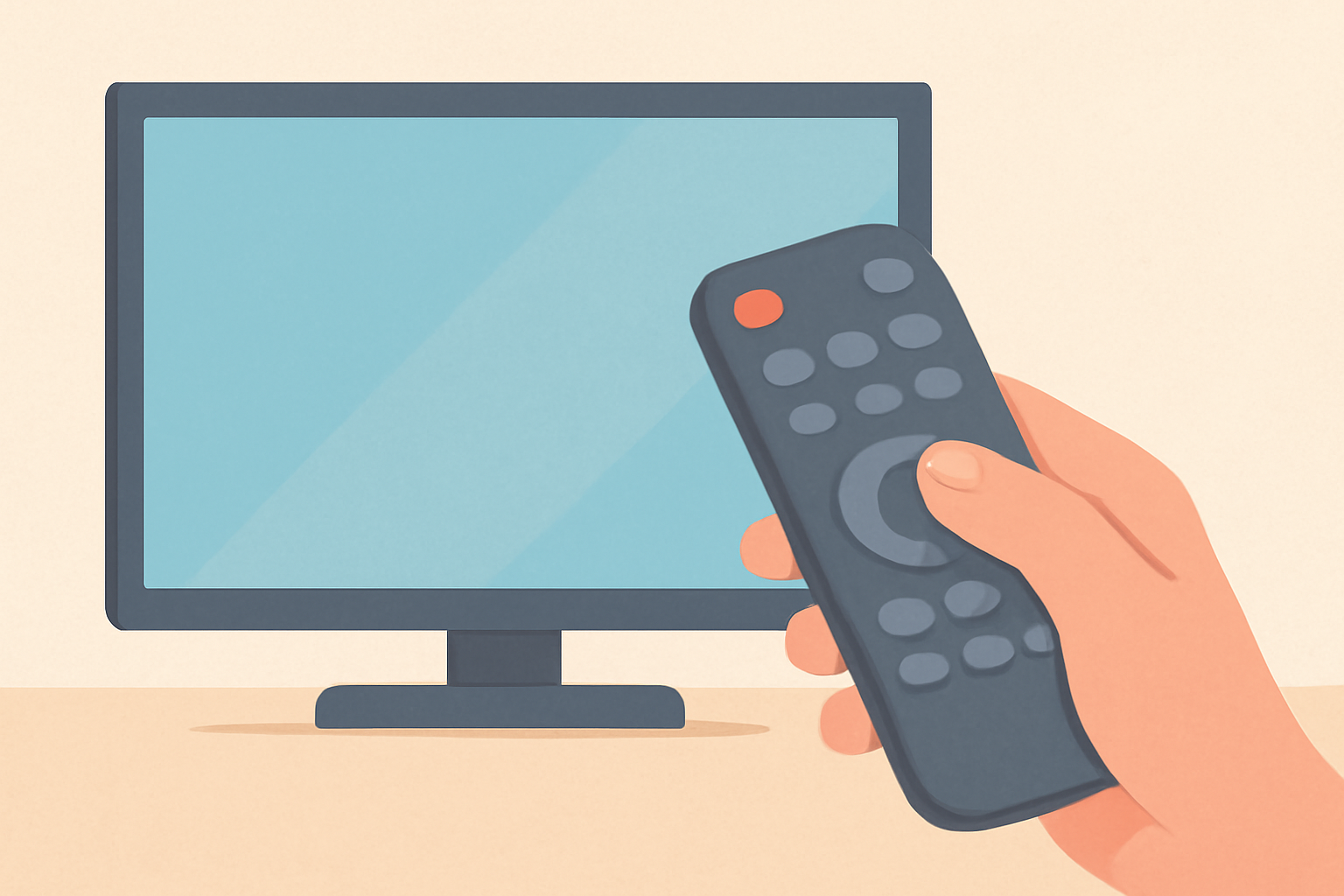
When your Firestick remote stops responding, it can derail a movie night or a live sports feed. This guide walks you through a practical, ordered troubleshooting path that starts with the easiest fix and ends with replacing the remote if needed. You will also find a compact quick-fix table you can skim for a fast solution. For deeper setup steps and related device comparisons, check our Fire TV Stick Setup for Streaming: The 10-Minute Complete Guide and our discussion in Chromecast vs Firestick: Which Should You Buy.
Check the batteries and power
The most common cause of a non responsive Firestick remote is dead or low batteries. Remove the remote’s back cover and replace the batteries with fresh AA alkaline cells. Make sure you insert them in the correct orientation. If you use rechargeable batteries, confirm they’re charged, though standard alkalines tend to be more reliable for a quick fix. After replacing, hold the Home button for about 10 seconds to reinitiate the pairing sequence. If you’re using a model that supports voice search, verify the microphone button is clean and unobstructed.
Re-pair the remote with the Fire TV
If the remote still won’t respond, re-pairing often resolves the issue. Start by unplugging the Fire TV device for a few seconds and then plug it back in to boot fresh. While the Fire TV is booting, press and hold the Back and Menu (three horizontal lines) buttons on the remote for about 10 seconds. If your remote supports the Home button pairing method, you can also press and hold the Home button for 10 seconds to re-pair. After pairing, look for a confirmation on screen that the remote is connected. If the pairing fails, try again with fresh batteries and a clearer line of sight to the Fire TV dongle.
Check for interference and use an HDMI extender
Interference or signal blocking can cause the remote to seem unresponsive. If your Fire TV is connected behind a cabinet or close to a router, you might experience occasional dropouts. Using an HDMI extender cable can move the Fire TV dongle away from obstructions and improve line-of-sight to the remote. Position the extender so the remote has a direct path to the Fire TV sensor. If you have a power strip next to the TV, consider moving it away from the device to avoid electrical interference.
Use the Fire TV app as a temporary remote
If you need a quick workaround while you troubleshoot, install the official Fire TV app on your smartphone or tablet. The app mirrors the Firestick remote functions and can control playback, navigation, and voice search. This is a solid interim solution if you have trouble locating spare batteries or if you prefer a larger control surface. You can learn about similar setup tasks in our guide on Fire TV Stick Setup for Streaming: The 10-Minute Complete Guide.
Factory pairing reset and reinitialization
If the basic pairing fails, a more thorough reset can help. Go to Settings on the Fire TV, select Controllers and Bluetooth Devices, then Amazon Fire TV Remotes, and choose in-range options to forget the current remote. Then re-pair by holding the Home button for 10 seconds until you get a pairing prompt. This step can resolve issues caused by a corrupted pairing record. If you need a broader comparison of hardware options after you fix this, see Best streaming device for 4K | Detailed 4K Device Comparison.
Replace the remote
If all else fails, replacing the Firestick remote is a straightforward option. Make sure you buy from a licensed retailer or directly from Amazon to avoid compatibility or security issues. When you get a new remote, follow the same pairing steps and confirm it appears as connected in Settings > Controllers and Bluetooth Devices. If you want to compare different remote experiences, you can also explore a broader device landscape in Best streaming device 2026 guide to top options.
Quick-fix table: fast checks at a glance
| Step | What to do | Why it helps | Result to look for |
|---|---|---|---|
| 1 | Replace batteries | Dead batteries stop signal transmission | Remote opens or responds after replacement |
| 2 | Re-pair the remote | Pairing may be corrupted | On-screen confirmation that remote is connected |
| 3 | Move or extend HDMI | Interference from cables or cabinets | Remote responds clearly with minimal delay |
| 4 | Try the Fire TV app | Gives control while fixing the remote | App remote works reliably for navigation |
| 5 | Forget and re-pair | Clean pairing record can fix glitches | Successful re-pair indicator on screen |
| 6 | Replace remote | Hardware failure unlikely but possible | New remote works as expected |
Why interference and distance matter
There is no magic fix that works in every room. Firestick remotes rely on line of sight with the IR sensor or Bluetooth connection depending on the remote model. Even small obstacles can limit responsiveness. If your setup uses a TV stand or cabinet that blocks the sensor, reorganize the furniture so the remote has a clearer path. Some users also report improved performance when using a powered USB hub near the Fire TV device to provide stable power to the dongle and its accessories. For broader context on device ecosystems, you can compare options in our Fire TV Stick 4K Review: Still the Best Streaming Stick for Most People and Chromecast with Google TV: Setup and Casting, Explained.
Common signs the problem is not with the remote
- The Fire TV responds to voice commands via the Alexa-enabled remote only sometimes.
- The screen shows a prompt to pair when you press the Home button repeatedly.
- Other HDMI devices on the same HDMI port work but the Fire TV remote does not.
- The Fire TV keeps flashing a blue light when the remote is pressed without any on screen reaction.
If you notice your Fire TV hardware behaving oddly with multiple remotes, it could indicate a broader issue with the device. In that case, consult the official Fire TV support resources or consider testing the Fire TV with a different remote to isolate the problem.
Alternative control options and ecosystem context
For homeowners evaluating different streaming ecosystems, it helps to compare how remotes behave across devices. The Fire TV ecosystem is widely regarded for its deep integration with Alexa and broad third-party app support. If you want a broader look at how Fire TV stacks up versus the competition, read our comparison piece on Chromecast vs Firestick: Which Should You Buy. For a full 4K device landscape, our Best streaming device for 4K | Detailed 4K Device Comparison provides more context.
When to consider a factory reset of the Fire TV
If you continue to experience remote issues after trying the above steps, you might consider a factory reset. This should be a last resort because it clears all apps and settings. Make sure to back up any custom configurations or re-download apps after the reset. A factory reset is different from simply re-pairing a remote; it resets the entire device to its original software state. After a reset, you will need to re-link your Amazon account and re-establish your preferred apps.
Official sources and further reading
- For broad hardware comparisons and setup guidance, you can explore our detailed guides on Fire TV Stick Setup for Streaming: The 10-Minute Complete Guide and Fire TV Stick 4K Review: Still the Best Streaming Stick for Most People.
- For cross device comparisons and context, consider reading Chromecast vs Firestick: Which Should You Buy and Best streaming device for 4K | Detailed 4K Device Comparison.
- External resources on wireless standards and remote controls include Wi-Fi Alliance and general reference like Wikipedia Remote control.
Bottom line
A non responding Firestick remote is usually a fixable issue. Start with fresh batteries and a quick pairing reset. If interference or connection quirks persist, repositioning the HDMI extender and verifying the remote with the Fire TV app often restores normal operation. If nothing works, replacing the remote is a sensible next step, and you can often find a compatible replacement from licensed retailers that ensure proper pairing and security. Keeping a mobile remote handy and familiarizing yourself with the pairing steps makes future hiccups less frustrating. For ongoing setup and device choices, consider reading our guides on related streaming devices to make an informed decision about your home entertainment setup.
Frequently Asked Questions
My Firestick remote isn’t responding at all. What should I check first?
Start with batteries, then try re-pairing the remote to the Fire TV device.
Can interference from HDMI cables cause remote issues?
Yes, a poorly positioned HDMI extender or cable can disrupt signals and power. Try repositioning.
Is there a quick fix if I lose the remote entirely?
Use the Fire TV mobile app as a temporary remote while you troubleshoot or replace the controller.
This is an independent editorial site. We do not host, sell, or distribute any streams or subscriptions. Always verify that a service is properly licensed in your country. Some links may earn us a commission at no cost to you.