how to reset a firestick for quick fixes
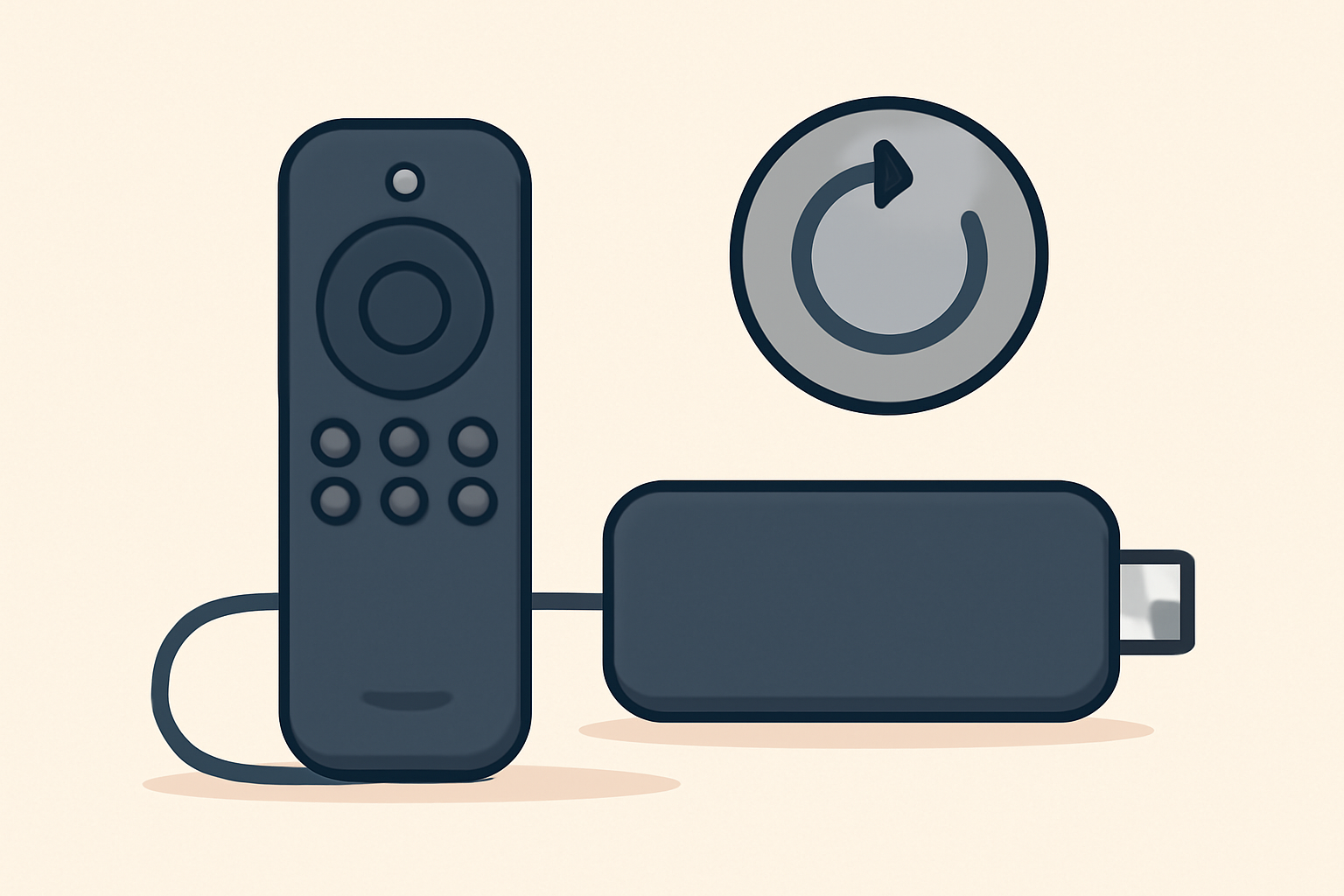
Welcome to a clear guide on how to reset a firestick. This guide covers soft restart options when you want a quick refresh and a full factory reset for deeper problems. You’ll learn exactly when to use each method, and I’ll walk you through the precise steps so you can perform the reset without confusion. If you want more context on related devices, check our Fire TV Stick Setup for Streaming: The 10-Minute Complete Guide for practical setup tips and troubleshooting pointers. You can also see how other devices handle resets in our broader device guides.
When to perform a soft restart versus a factory reset
A soft restart, sometimes called a reboot, is the gentler option. It clears temporary software hiccups, stops runaway processes, and can fix minor issues like apps behaving oddly, app icons not responding, or video playback stuttering. A factory reset is the nuclear option. It returns the Firestick to its original factory state, erasing apps, accounts, saved preferences, passwords, and downloaded data. You should choose a factory reset only after you have exhausted softer troubleshooting steps or if you are selling or gifting the device and want to wipe personal data.
If your Firestick is functioning reasonably well but lags occasionally or shows minor glitches, start with a soft restart. If problems persist after a soft restart, or if you notice persistent issues after a software update, a factory reset may be necessary. For persistent network or buffering issues, you can also review our Firestick buffering fixes to rule out network related causes before you reset. For broader streaming device context, you might also browse our Android TV and Chromecast setup guides to compare how different platforms handle resets and first time setup. For more on the Fire TV ecosystem and performance, see our Fire TV Stick 4K Review. If you want to know how resets compare across platforms, see our general setup guides for Roku and Samsung Smart TV streaming as well.
How to perform a soft restart on a Firestick
A soft restart is quick and uses the Fire TV menu. It does not erase any data. Use this first if the device is acting slow, an app is freezing, or you’re experiencing minor playback hiccups.
Step by step
- From the Firestick home screen, press and hold the Play/Pause button and the Down button on the remote for about five seconds. If that combination does not work on your model, try holding the Menu button while selecting Restart, depending on your remote model.
- Try the restart again if the device does not respond to the first attempt. You can also navigate to Settings > My Fire TV > Restart to initiate a reboot.
- Allow the Firestick to reboot completely. This may take a couple of minutes as the system reinitializes.
If you prefer a setup oriented path, you can follow the Fire TV Stick Setup for Streaming: The 10-Minute Complete Guide for a similar restart flow described in setup steps. Additionally, you can review our guide on how to cut the cord with live TV streaming to see how a soft restart can affect streaming service apps during a transition.
How to perform a factory reset on a Firestick
A factory reset returns the device to its out-of-the-box state. It erases accounts, passwords, apps, and custom settings. Use this option only after backing up essential data or if you plan to repurpose or resell the device. If the Firestick is still experiencing issues after a factory reset, there may be hardware problems or external network issues worth investigating.
Two ways to factory reset
A. Through the on-screen menu
- Go to Settings on the Firestick home screen.
- Scroll to My Fire TV or Device & Software, depending on your Fire OS version.
- Select Reset to Factory Defaults or Reset to Factory Settings.
- Confirm your choice when prompted. The device will reboot and begin the reset process.
- After the reset completes, you will be prompted to set up the Firestick again as if it were new.
B. Using a hardware button sequence (if the device is not responding to the on-screen menu)
- If your Firestick has a power button on the device itself, unplug the power, wait 30 seconds, and plug it back in. When the Firestick starts, press and hold the Back button on the remote and the Right button on the navigation ring for about 10 seconds. This triggers a reset sequence on many Firestick models.
- If the remote is not responsive, you can try pairing the remote again after the reset during the initial setup.
If you want to reapply your preferences after the reset, you’ll need to re-install apps from the official store. You can reference the Fire TV Stick Setup for Streaming: The 10-Minute Complete Guide for steps on reinstalling essential apps and configuring settings from scratch. If you are dealing with buffering or performance after a reset, our Fire TV Stick Buffering fixes guide can help you optimize your connection and app performance.
What to back up before a factory reset
A factory reset clears all personal data and apps. It removes saved login details and watchlists. If you have important items to preserve, consider noting down login credentials or using a password manager before performing the reset. While you cannot back up the Firestick itself in the same way you back up a computer, you can take steps to make reinstalling easy.
Backup suggestions
- Write down or securely store login credentials for streaming apps you commonly use.
- Take a photo of important settings if you need to replicate audio or display preferences after the reset.
- For services that support cloud syncing, ensure your login is current so you can reauthenticate easily.
If you want a broader look at how different devices handle essential setup and backup tasks, you might explore our Cisco or other streaming device guides. For similar reset processes on other platforms, see our Chromecast with Google TV setup guide or the Apple TV 4K setup guide for how these manufacturers approach restoration of factory defaults.
A quick comparison of reset types
The table below summarizes soft restart and factory reset so you can decide quickly which path to take.
| Reset type | What it does | When to use | Data impact |
|---|---|---|---|
| Soft restart | Reboots the device to clear temporary glitches | When apps freeze, playback stalls, or the UI becomes sluggish | Keeps all apps and data |
| Factory reset | Restores to original factory state, erases data | After persistent issues, if selling or gifting the device, or if the device is misconfigured beyond easy repair | Removes apps and data, requires reinstallation |
If you are curious about how resets are implemented on other streaming devices, see our Apple TV and Chromecast setup guides. You can compare performance and maintenance approaches across platforms by visiting external guides from official product pages and reputable technology references, such as Wikipedia Fire TV page and the Wi-Fi Alliance for general networking standards. For practical, device specific tips, you can also check our Fire TV Stick Setup for Streaming guide and the Fire TV Stick 4K Review to understand how the hardware handles resets under typical usage.
Common issues after a reset and how to handle them
Resetting the Firestick should typically restore smooth operation. However, some issues may surface after a reset, including:
- Apps not appearing in the library or failing to install
- WiFi connectivity problems after the first boot
- Outdated firmware prompts or updates failing
If you encounter these issues, try the following.
- Confirm your network is stable. A poor connection can make app signing in and updates fail.
- Reconnect to your WiFi network or switch to a 5 GHz network if available for better performance.
- Reinstall essential apps from the official store and sign in again.
- Check for updates by going to Settings > My Fire TV > About > Check for System Update.
- If problems persist, consult our guide on Fire TV Stick Buffering for fixes that address network or device settings.
For broader context, you might compare this approach with how other streaming devices handle post-reset setup by looking at our Chromecast or Roku setup guides.
What to do after you reset
After a factory reset, you will be prompted to set up the device from scratch. This is the time to decide whether you want to sign in with your Amazon account or create a new one. Signing in enables access to your purchased content, subscriptions, and saved preferences. If you want to optimize your setup after the reset, follow the Fire TV Stick Setup for Streaming: The 10-Minute Complete Guide for a clean, repeatable process. If you plan to frequently switch between streaming services, consider reviewing our 4K streaming explained guide to understand how device capabilities impact visual quality and data usage.
If you are evaluating which streaming platform to use, you may also want to compare live TV streaming services in our Best live TV streaming service 2026 comparison guide. For privacy minded readers, review our VPN and privacy section to understand how to protect your streaming activity online when using a Firestick.
Final tips and best practices
- Always confirm that you have the latest Fire OS version before performing any reset. Updates can fix underlying issues that temporary retires cannot fix.
- Use a soft restart as your first troubleshooting step for minor glitches.
- Back up important credentials and take notes on custom configurations prior to a factory reset.
- After a factory reset, take time to configure privacy and security settings so you can browse safely while streaming.
If you want to explore more device specific steps, you can look at our Fire TV Stick Setup for Streaming guide that walks you through initial setup and app installation. For broader comparisons with similar devices, see our Roku Setup for Streaming and Samsung Smart TV Streaming Guide to understand how different ecosystems approach resets and fresh starts.
Bottom line
Resetting a Firestick is straightforward once you know when to use soft restart versus factory reset. A soft restart is the quick fix for everyday glitches, while a factory reset should be reserved for serious issues or when you prepare to hand the device to someone else. By following the exact steps outlined here, you can safely refresh your Firestick and get back to enjoying your favorite shows and games without unnecessary drama. If you want more hands on setup help, consider checking our Fire TV Stick Setup for Streaming guide and our related how to cut the cord resources for broader context.
Related guides
Frequently Asked Questions
What is the difference between a soft restart and a factory reset?
A soft restart reboots the device to clear temporary glitches without deleting apps or data. A factory reset erases all settings and returns the Firestick to its original state.
Will a factory reset remove apps I installed from unknown sources?
Yes, a factory reset removes all apps and data. You will need to reinstall apps from the official store after the reset.
How long does a factory reset take?
Typically several minutes. If the device seems stuck, try a power cycle and retry the reset.
This is an independent editorial site. We do not host, sell, or distribute any streams or subscriptions. Always verify that a service is properly licensed in your country. Some links may earn us a commission at no cost to you.