How to Update Apps on Firestick
How to approach updating apps on firestick
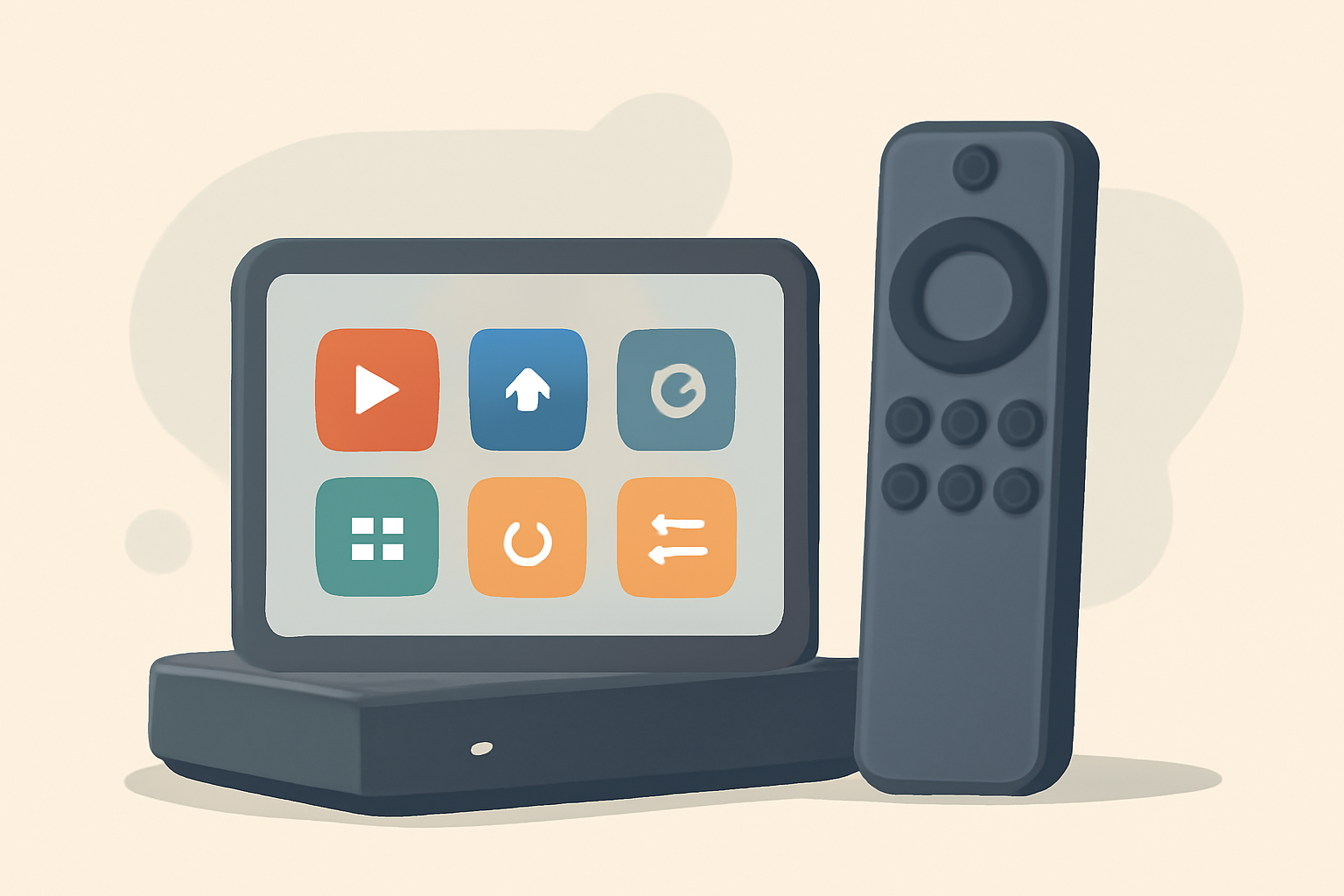
If you use a Firestick regularly, keeping apps up to date helps ensure security, bug fixes, and feature improvements. There are two broad paths: automatic updates that run in the background and manual updates you trigger yourself. In addition to updating apps, you should consider updating Fire OS itself when a new version is released. This can improve compatibility with new apps and services and keep security protections current. The goal is to have a stable streaming experience with the latest features while avoiding interruptions caused by outdated software.
Update apps automatically versus manually
Automatic updates let the Firestick handle updates in the background. This is convenient for most users because it reduces the need to check each app. Here is how to enable automatic updates and what to expect.
Enable automatic app updates
- Open the Fire TV home screen and navigate to Settings.
- Go to Applications or Apps.
- Find Automatic updates and ensure it is set to On.
- If you want more control, you can enable automatic updates only over Wi Fi, which can save data if you use a limited plan.
With automatic updates on, most apps install updates when they become available. Some apps may require a brief restart to apply changes. If you notice a particular app that seems stuck on an older version, a manual update can help.
Perform a manual update
If you prefer to control updates or if automatic updates are not working for a specific app, you can update manually:
- From the Fire TV home screen, select Settings.
- Choose Applications and then Manage Installed Applications.
- Select the app you want to update from the list.
- If an update is available, you will see an Update button. Choose Update to start the process.
- Wait for the progress indicator to finish, then launch the app to confirm the update completed successfully.
Manual updates are a good fallback when you suspect a bug or if you want to ensure a particular version is installed.
Updating via the Appstore
The standard route for app updates on Firestick is through the Appstore interface. It shows available updates for installed apps in a consolidated list. If you see a badge or notification that updates are ready, you can update all at once or pick individual apps to update. This method helps when you want to review what is changing in the update before applying it.
When updating through the Appstore, you will typically see the latest version number and release notes if the app developer provides them. If an app is not updating as expected, you can try clearing the app’s cache or reinstalling it to ensure you receive the latest version. More on this technique is covered in the troubleshooting section.
Update Fire OS itself
Fire OS is the operating system that powers the Firestick. Sometimes a new OS version includes security patches, performance improvements, and compatibility updates that indirectly impact app updates. Here is how to update Fire OS:
- From Settings, go to My Fire TV or Device Preferences depending on your model.
- Choose About or Developer options.
- Select Check for System Update. If a new version is available, follow the on-screen prompts to download and install it.
- Do not interrupt the update once it starts, and ensure the device remains plugged in or connected to power.
If a system update fails or stalls, you can attempt a retry after a few minutes, restart the device, or check your network connection. In some cases a factory reset may be a last resort to recover from persistent stuck updates, but that should be considered carefully as it restores default settings and removes installed apps.
What to do when an app will not update
App update failures can stem from several causes. Here is a practical checklist to resolve most issues.
Check storage space
Low storage is a common reason for update failures. Free up space by removing unused apps, clearing cached data, or moving large media files off the device. You can also delete temporary files by choosing Settings, Applications, Manage Installed Applications, and clearing cache for specific apps.
Verify network connectivity
A stable Wi Fi connection is essential for updates. If streaming performance is uneven or you see intermittent buffering, run a quick network check. You can test on other devices to confirm whether the issue is isolated to the Firestick or the network as a whole. If the network is the culprit, consider restarting your router or connecting to a different network.
Clear cache or reinstall the app
For stubborn update failures, clearing the app’s cache can remove corrupted temporary data that blocks updates. If clearing cache does not help, uninstall and reinstall the app. Reinstalling ensures you fetch the latest version from the Appstore.
Check permissions and app compatibility
Some updates require particular permissions or may depend on a minimum Fire OS version. Ensure the app has the necessary permissions and that your device is running a compatible OS version. If a compatibility issue exists, updating Fire OS or choosing an alternative app may be necessary.
Update through the Appstore again
Sometimes the update appears but fails to install due to a temporary glitch. Try checking for updates again after a short wait or reboot the Firestick and attempt the update once more.
Clearing space first before updating
Freeing space improves the odds that updates install smoothly. Start with a quick inventory of installed apps and media, then decide what to remove or offload. Here are practical steps.
Identify large apps and media
From Settings, go to Applications and choose Manage Installed Applications to view the storage footprint of each app. Locating the largest offenders helps prioritize what to remove or clear.
Clear app caches and data
Some apps accumulate cache that can be cleared without deleting the app. This saves space while preserving your installed app. In most cases you can clear cache by selecting the app and choosing Clear Cache.
Uninstall unused apps
If you find apps you rarely use, uninstall them to reclaim space. After uninstalling, you can reinstall later if needed. This is a simple way to free up significant storage for updates and essential streaming.
Use external storage options
If your Firestick model supports it, consider expanding storage with a USB drive or a compatible external storage option. This can provide additional room for apps and media content.
Move or delete downloaded media
If you download content to local storage via apps, remove or relocate files to another device to reclaim space on the Firestick. Deleting downloaded items often frees substantial space for updates.
Practical workflow with real world steps
To keep the process straightforward, here is a practical, repeatable workflow you can follow.
- Start with a quick check of storage and network. Ensure there is enough space and a stable connection.
- Decide whether to enable automatic updates for convenience or perform a manual pass to review changes.
- Update via the Appstore if updates are visible and there is no urgency to force updates immediately.
- If updates fail, clear cache, then reinstall the app if necessary. Then reattempt the update.
- If many updates are waiting, consider updating overnight or during a period of light streaming to minimize interruptions.
Realistic expectations about the update process
Not every app updates on the same cadence. Some apps release updates fast after a bug fix, others may test compatibility across a range of devices. The Firestick ecosystem is designed to handle updates efficiently, but occasional hiccups happen, especially with larger apps that require more resources. A combination of automatic updates and periodic manual checks is a practical approach to staying current without micromanaging every app.
Practical comparisons and considerations
Choosing how to manage updates can depend on your preferences and how you use your Firestick. The following table highlights typical scenarios and what to expect with both automatic and manual updates.
| Update approach | Pros | Cons | Best for |
|---|---|---|---|
| Automatic updates | Hands off, ensures security fixes; updates happen in background | Might use data on metered networks; some updates may install during prime viewing times | Everyday users who want a set it and forget it approach |
| Manual updates | Greater control; can review release notes | Requires regular checks; potential for delays in getting updates | Power users who want to review changes before installing |
Internal links to related guides
As you plan your update routine, you may find it helpful to compare streaming device options or explore setup details for other platforms. For example, check our Fire TV Stick Setup for Streaming: The 10 Minute Complete Guide for a quick walkthrough, or read how the Chromecast with Google TV compares in our Chromecast vs Firestick: Which Should You Buy article. If you are evaluating the overall device landscape, our Best streaming device 2026 guide to top options provides a broad view. For a broader context on device performance and setup, see our Fire TV Stick 4K Review: Still the Best Streaming Stick for Most People and the related setup guide linked above.
External resources for deeper understanding
- For authoritative information on Wi Fi networks and connectivity, you can consult the Wi Fi Alliance.
- If you want technical background on how Fire OS handles updates, you can browse the official documentation from Amazon or general articles on operating system update practices on reputable sites such as [Wikipedia] or other standards bodies, which provide context on how devices manage software updates.
Troubleshooting quick wins
If updates stall and you want a quick path forward, try these steps in order:
- Restart the Firestick. A simple reboot can clear temporary glitches that block updates.
- Reconnect to the network. Switch between networks if available to determine if the issue is network related.
- Update the app via the Appstore after clearing its cache. This ensures you fetch the latest version without old cached data interfering.
- If one app specifically refuses to update, remove and reinstall it. This often resolves stubborn update issues because the app is replaced with a fresh copy.
The broader context of updates and performance
Keeping apps current is part of a broader strategy to maintain a smooth streaming experience. In addition to app updates, staying on a supported Fire OS version can help ensure compatibility with new streaming apps and features. The Fire TV ecosystem continues to evolve, and the combination of app updates and OS updates typically yields better security, fewer crashes, and improved performance. For readers who want to compare devices and understand how different platforms handle updates, our device guides cover the essentials and contrasts with other platforms like Android TV and Apple TV.
Related topics worth exploring
- If you want to understand how to optimize your streaming setup in general, consider our Android TV Setup for Streaming: The Complete Guide and our Apple TV 4K Setup for Streaming: Settings That Actually Matter. These guides provide insights into how different ecosystems manage apps and updates.
- For those weighing which device to choose, the Best streaming device 2026 guide to top options offers a side by side look at features and update mechanisms across platforms.
- If you want to improve performance and reduce buffering while updates are downloading, our Fire TV Stick Buffering: 9 Fixes That Actually Work can help.
The target keyword in context
Knowing how to update apps on firestick is part of maintaining a solid streaming setup. By embracing either automatic updates or timely manual updates, and by keeping Fire OS itself up to date, you reduce the risk of issues during peak viewing times. With a clear approach to clearing space first and addressing stuck updates promptly, you can keep your favorite apps current without dedicating much time to maintenance.
Bottom line
Updating apps on firestick is a straightforward process once you know where to look. Use automatic updates for convenience, or perform manual updates through the Appstore when you want more control. Don’t forget to update Fire OS when new versions arrive, and tackle update problems by freeing space, checking network connectivity, and reinstalling troublesome apps when needed. A small maintenance routine now saves headaches later and keeps your streaming experience steady and secure.
Closing note
If you want a quick, practical recap, here are the essential steps: enable automatic updates, or perform manual updates via the app list in Settings. Check storage before updates, clear caches if updates fail, and reinstall the app if necessary. For more context on how these devices compare, you can read about other platforms in our guides linked above. Remember to keep your system current and your apps refreshed to maintain a smooth Firestick experience.
Frequently Asked Questions
Do I need to update Fire OS to get app updates
App updates happen independently of Fire OS but keeping the OS current can improve compatibility and performance.
What if an app won’t update
Check storage, network, and permissions first, then try clearing cache or reinstalling the app.
Can I turn on automatic updates for all apps
Yes, you can automate updates so apps install in the background when updates are available.
This is an independent editorial site. We do not host, sell, or distribute any streams or subscriptions. Always verify that a service is properly licensed in your country. Some links may earn us a commission at no cost to you.