how to set up a vpn on a router that works for you
Why you might want to set up a VPN on a router
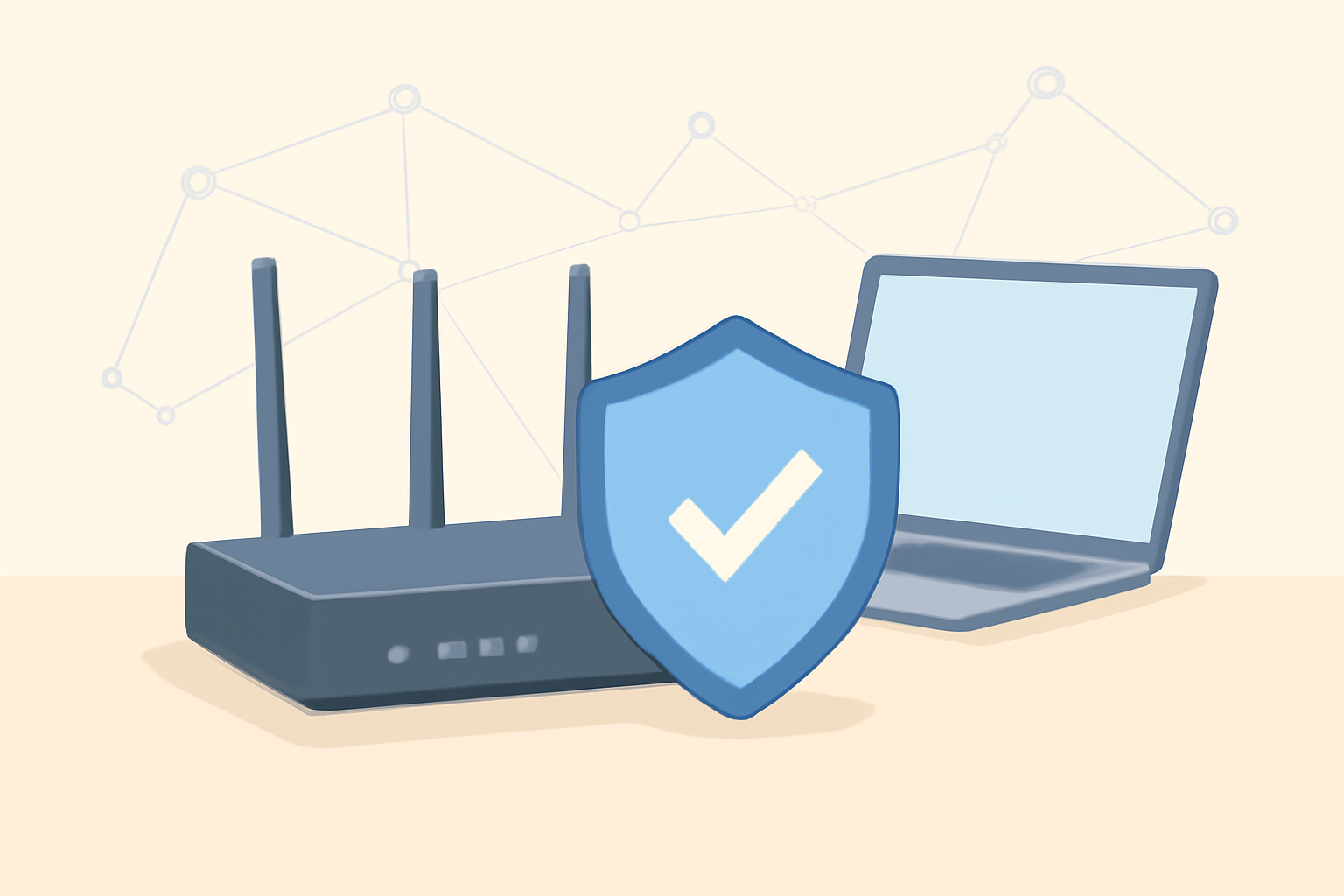
Setting up a VPN on a router means every device that connects to your home network is protected by the VPN without needing individual apps on every device. This is helpful if you have smart TVs, gaming consoles, or streaming boxes that don’t support VPN apps natively. It also simplifies your security posture by ensuring all traffic leaving your home network is encrypted. For people who want to watch shows that are geo restricted, a router level VPN can help bypass those blocks on devices that otherwise lack VPN support. If you are curious about why people use VPNs for streaming, you can read our VPNs for Streaming guide for context about when a VPN adds value. When deciding whether to route VPN traffic at the router, check our VPN & Privacy section to understand how encryption and masking can affect performance and privacy. For hardware options, see our guidelines on router placement and Wi Fi optimization to ensure you don’t introduce extra latency from poor placement. In addition, you may want to learn how changing DNS interacts with streaming and VPN use, which we cover in our DNS for Streaming guide.
General setup steps you can follow
Step 1: choose the right router for VPN compatibility
Not all routers support built in VPN servers or can flash custom firmware that supports VPNs. Start by verifying whether your current model supports OpenVPN or WireGuard, or whether you are comfortable flashing firmware. If you prefer a simpler path, you might choose a router that ships with VPN features or a model known to support easy setup. When evaluating routers, consider how many devices you typically connect and whether you need simultaneous connections for family members. Realistically, a mid range router with solid firmware can handle several devices streaming at once if network conditions are favorable.
Step 2: decide on VPN protocol and service
VPN protocol choice affects speed and security. OpenVPN remains a popular, widely compatible option. WireGuard can offer faster speeds and lower CPU load in many cases. Compare these with your VPN provider’s recommendations. You should choose a reputable service that is licensed and transparent about privacy practices. If you plan to use the router for streaming on devices that don’t support VPN apps, confirming that the provider supports router based setup is essential. For guidance on streaming specific services with a VPN, see our VPNs for Streaming guide and our Best VPNs for Android devices to ensure you pick a provider that matches your devices.
Step 3: gather your VPN configuration files or credentials
Some routers require you to upload certificate files or a configuration file, while others only need a username and password plus a server address. Keep a copy of your VPN login details, server addresses, and any certificate files ready. If you have a VPN that uses WireGuard, you will typically input a public key, a private key, and a server endpoint. If your provider offers an automatic setup option through the router, you can use that as a starting point and then customize settings as needed.
Step 4: access your router’s administration interface
Log into the router’s web portal or app. This typically involves entering the router’s LAN IP address in a web browser and providing admin credentials. If you cannot recall the admin password, you may need to reset the router to factory settings, but that will erase all customizations. Some carriers provide managed gateways that restrict VPN functionality; in that case you may need an alternative router that is compatible with VPN setup or use a separate VPN capable device.
Step 5: enable VPN and input configuration
In the VPN section of the router interface you will choose the protocol you plan to use. Upload or paste your VPN profile, certificate, or keys as required. Apply the changes and reboot the router if prompted. After the router reboots, verify that the VPN is active by checking the status page in the router interface or by visiting a site that shows your IP address. If you see the VPN’s server location instead of your own city, you know the VPN is functioning.
Step 6: test from multiple devices
Once the router is online with the VPN, connect devices around the home and test a few things. Check that streaming is functioning on a smart TV or streaming box and that a laptop on the same network can access geo restricted services as intended. If you encounter issues, consult the provider’s help center for router specific instructions or revisit your protocol settings. Our guide on Ethernet vs Wi Fi for streaming can help you decide how best to connect devices in your setup for optimal performance.
Step 7: monitor performance and adjust as needed
A router level VPN can add latency. If you notice buffering or reduced speeds on certain devices, try connecting to a server closer to your location or switching to a different VPN protocol. You can also consider improving your home network by optimizing router placement or upgrading to a faster internet plan. To understand how your network supports streaming with multiple devices, review our bandwidth planning guide for a realistic sense of how much throughput you need.
Pros and cons of routing a VPN through your router
Pros
- All devices benefit without individual configuration
- Protection for smart devices like TVs and game consoles
- Centralized control over encryption and privacy
- Potentially easier to manage parental controls in a single place
Cons
- Initial setup can be technical and may void some warranties
- VPN speed can be limited by router hardware
- Some streaming services detect VPNs and may block access or degrade quality
- If the VPN connection drops, devices on the network may lose protection until the router reconnects
For a balanced view, see our VPN for streaming guide to understand when VPNs are useful for accessing content and when they may cause problems. If your primary goal is to improve streaming quality without altering your network’s core security, you might also explore other options such as changing DNS settings for streaming. Our article on DNS for Streaming discusses how DNS changes can affect streaming quality and regional access, which can complement a router based VPN approach.
Compatible routers and what to look for
Not every router is created equal VPN support. Look for one of these features:
- Native VPN server support such as OpenVPN or WireGuard
- Ability to flash with third party firmware like DD Free or OpenWrt if you want more control
- A CPU with strong processing power to handle multiple concurrent VPN connections without slowing down
- Adequate flash storage and RAM to support the VPN workload
- User friendly interface for non technical users and straightforward backup options
If you want a ready to use solution and you value ease of setup, consider buying a router model that is known for VPN friendliness and then follow the vendor specific setup instructions. You can also use an Ethernet connected device to run VPN software if your router cannot support VPN features, but that means you need to manage VPN on each device rather than at the network level. We discuss how to optimize your network for streaming in our router placement and Wi Fi optimization guide and in our Ethernet versus Wi Fi for streaming piece.
A practical comparison table of common router VPN options
| Feature | Native VPN server support | Third party firmware support | Typical performance impact | Ease of setup for non tech users |
|---|---|---|---|---|
| Entry level consumer routers | Often limited | May not be available | Moderate to noticeable | Moderate with guided instructions |
| Mid range routers | Common OpenVPN or WireGuard options | Possible with flashing | Some speed loss but manageable | Good with vendor instructions |
| High end routers | Strong OpenVPN and WireGuard options | Broad compatibility with DD WRT or OpenWrt | Minor to moderate latency increase depending on server distance | Moderate to high depending on firmware complexity |
This table helps you compare what matters most when choosing a router for a VPN. If you want to see how router capabilities align with streaming needs, check our guide on bandwidth for multiple devices and our guide on powerline versus mesh versus Ethernet to ensure your setup is wired as much as possible for stable connections.
Common pitfalls and how to avoid them
- Don’t pick a router solely on price. A budget model may not handle VPN processing well and could slow down every connected device.
- Don’t assume all VPN providers work equally well on every router. Some providers are better optimized for router setups or specific firmware. Always verify compatibility with your chosen provider before purchasing.
- Don’t ignore firmware updates. VPN security relies on up to date firmware, so keep the router software current.
- Don’t expose your network by using default credentials even after enabling VPN. Change the router login and the admin password to strong, unique values.
- Don’t assume routing a VPN eliminates the need for other privacy practices. You still need safe browsing habits and strong device security.
If you experience buffering or sudden slowdowns after enabling the VPN, consider testing different servers or reducing encryption level where acceptable for your use case. Our diagnostic guide can help you pinpoint bottlenecks and adjust settings to improve performance without compromising security. If you want more context on the broader privacy implications, our VPN and privacy overview provides a balanced view of what a router level VPN protects and what it doesn’t.
How this fits into your overall home streaming setup
A router level VPN is part of a layered approach to privacy and streaming quality. It reduces your exposure on the network and ensures encryption across all devices. To maximize performance, align the VPN strategy with better network fundamentals. For example, choose a router placement strategy that minimizes interference and improves signal quality. Our router placement article and our Ethernet vs Wi Fi piece can help you place devices to minimize latency and packet loss.
In addition, consider how using a VPN interacts with DNS. Some users report improved streaming with DNS tweaks, while others prefer VPNs for privacy and geo access. For practical guidance, see our DNS for Streaming article to understand how DNS choices can impact streaming performance and regional availability when used in conjunction with a router based VPN.
If you want to broaden your protection beyond the home, look at our Best VPNs for Android devices and 3 Best VPNs for Firestick & Fire TV to understand the landscape of VPN options on devices that you may connect through your router to larger screens or mobile devices. These guides can help you decide if a dedicated app on a device might be a better fit for certain situations.
Testing and validating your setup
- Confirm the VPN is active on your router by checking the router status page or using an IP lookup site to verify it shows the VPN server location rather than your home location.
- Connect a few devices and check if geo restricted content is accessible from those devices.
- Run speed tests to quantify the impact of the VPN on your network. Do this with and without the VPN to understand the difference and identify whether server choice or protocol is the main limiter.
- If you notice significant issues, temporarily switch servers or try a different protocol. If problems persist, revisit the hardware capabilities or consider a separate VPN capable device for high demand scenarios.
Internal links you can weave into the narrative include practical references to our guides on streaming and networking. For example, you can mention how a VPN interacts with streaming by referencing our VPNs for Streaming guide, and point readers to our Best VPNs for Android devices for device specific considerations. You may also suggest checking our Ethernet vs Wi Fi for Streaming article when discussing how to connect devices to avoid congestion that could affect VPN performance. For a broader context on home network optimization, link to our Router Placement & Wi Fi Optimization piece. Finally, you can direct readers to our VPN & Privacy section to explore privacy considerations and best practices.
Closing: should you set up a VPN on your router
If your goal is blanket coverage for privacy across all devices and easy management for a household with multiple streaming devices, a router level VPN is a solid approach. It reduces the need to install apps on every device, helps cover devices that don’t support VPN apps, and provides a centralized way to control encryption and access. However, this approach requires careful planning around compatibility, hardware limits, and potential performance trade offs. If you want to keep things simple and device specific, you may prefer using a high quality VPN app on devices that support it. It’s about matching the setup to your devices, your privacy goals, and your streaming habits. For more context on streaming and privacy interplay, consult our VPN for streaming guide and the Best live tv streaming service comparison for a sense of how VPN usage fits with content access.
Bottom line: setting up a VPN on a router is a powerful way to secure traffic across your home network, but it requires careful selection of hardware, a clear plan for configuration, and ongoing testing to balance privacy with performance. If you want further guidance on related networking topics, check our networking guides such as How to Fix Buffering: The Complete Diagnostic Guide and Ethernet vs Wi-Fi for Streaming: Which Should You Use?. You can also explore our device and network sections for more hands on how tos and reviews. For a deeper look at how streaming and privacy intersect, see our VPN & Privacy hub and relevant product guides.
Frequently Asked Questions
Do I need a VPN on every device if my router has one
Not necessarily; a router level VPN covers devices on that network, but some devices may require individual VPN apps for specific features.
Will a VPN on my router slow down my connection
A VPN can introduce latency and reduce speeds depending on server distance and encryption level.
Are there routers that come with built in VPN support
Yes, some routers ship with native VPN support or easy flashing options, but features vary by model.
This is an independent editorial site. We do not host, sell, or distribute any streams or subscriptions. Always verify that a service is properly licensed in your country. Some links may earn us a commission at no cost to you.