IPTV Setup Guide: from Playlist to First Channel
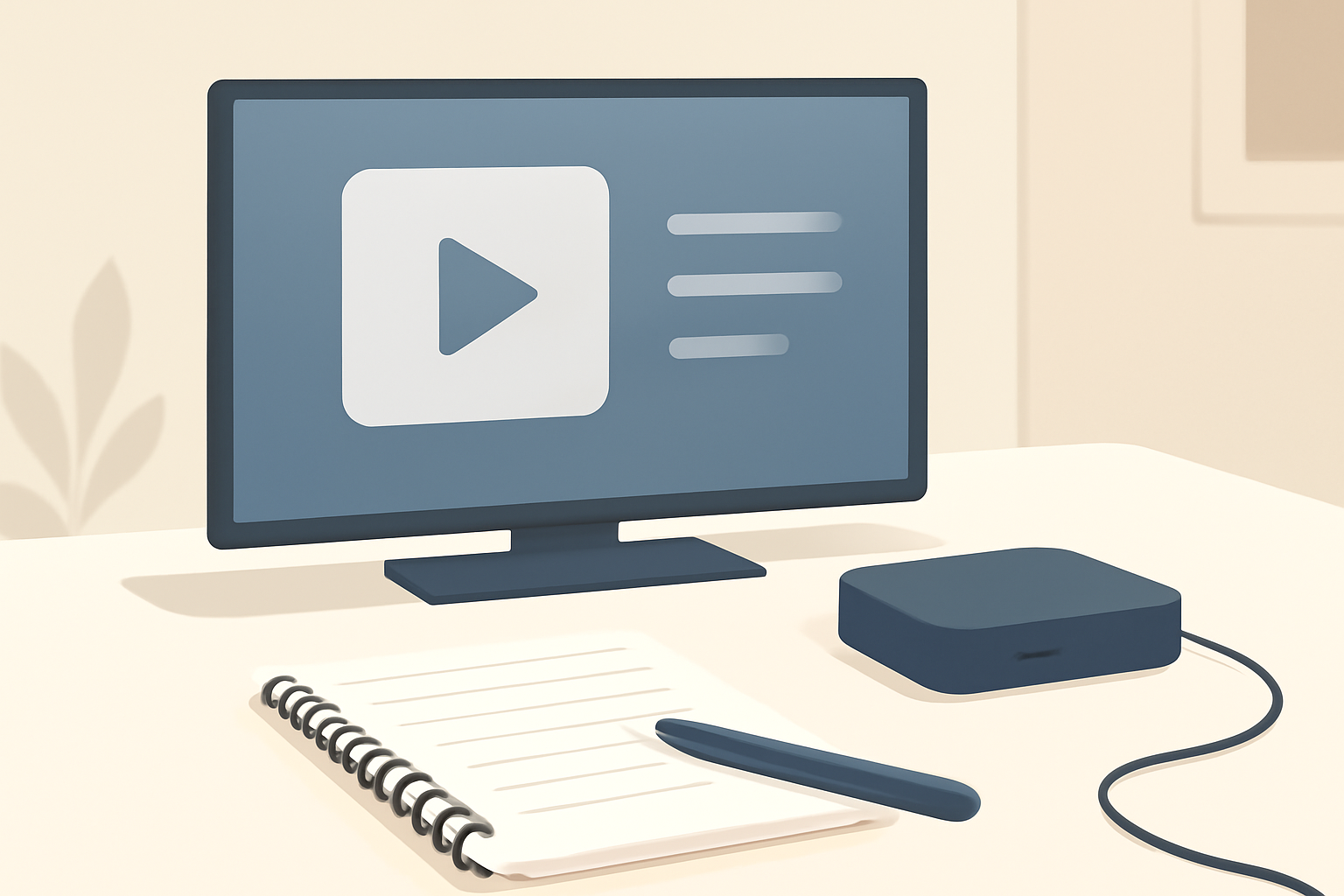
A solid IPTV setup starts with a plan and a trusted, legal service. This guide walks you through a generic setup that applies across players and devices, from loading a playlist or service details to hitting your first channel. Along the way you will learn practical steps, common pitfalls, and how to keep your viewing private without breaking terms of service. If you want to compare players before you start, check our Best IPTV Player Review: Comparing TiviMate Smarters and XCIPTV and our IPTV Smarters Pro Review: Features, Setup and Limits. For legal and safety considerations, see How to choose a legal IPTV service and our buyer checklist in How to Choose a Legal IPTV Service: A Buyer’s Checklist.
What you need before you begin iptv setup
Before you dive into technical steps, gather the essentials. First, confirm that your IPTV provider is licensed. Using unlicensed streams can expose you to risks including malware and unreliable service. A reputable provider will offer a clear listing of channels or an on‑demand catalog and a stable playlist or portal. You can verify legitimacy by cross referencing with consumer guidance and official sources. If you are unsure, read our quick primer on legal IPTV options and red flags to avoid unlicensed sellers.
Second, choose a compatible player. A player is the software interface that reads the playlist or portal and presents channels. Popular choices include player apps on Android TV boxes, Amazon Fire TV devices, or Windows and macOS computers. We recommend exploring our comparisons and reviews to pick the best fit for your hardware and viewing needs. For a practical comparison of players, you can consult Best IPTV Player Review: Comparing TiviMate Smarters and XCIPTV as a starting point. If you want a focused setup guide for a common choice, see iptv smarters pro setup guide.
Third, ensure your network supports reliable streaming. IPTV is sensitive to latency and bandwidth fluctuations. A typical modern home network can handle several Mbps per stream, but always test your actual speeds. A stable Wi Fi connection is often enough, but wired Ethernet yields the best consistency for a full channel lineup. If you want to understand networking basics and privacy implications, browse our VPN & Privacy (section) for practical steps to protect yourself online.
Step by step: from playlist to first channel
Step 1: obtain a legal, licensed playlist or portal
If your provider gives you a direct playlist file, you will likely receive a URL or a file to import. Some providers give a portal URL that you sign into. In both cases, you will need the following:
- Playlist URL or M3U file for live channels and on demand content.
- Any required login credentials or Xtream details if your provider uses a portal approach.
- Channel EPG access if you want program guides. You can learn about EPG basics and fixes in our detailed explainer EPG Explained: How IPTV Program Guides Work (and How to Fix Them).
Do not confuse official lawful IPTV services with free or unlicensed streams. If you have questions about the legality of a source, learn more in our buyer’s guide and red flag tips.
Step 2: pick and prepare your IPTV player
Your choice of player matters. Some players are better suited to large channel lists, others to on demand catalogs. The player needs to support the playlist format from your provider and offer a clean, responsive interface. If you are deciding between options, our in depth reviews can help, and you can always start with a trial on a single device. For specific setup steps on a popular option, consult the dedicated setup guide linked above.
Step 3: install the player on your device
The installation process varies by device. On Android devices, you typically download the player from the device store, install it, and grant necessary permissions. On Fire TV, you may sideload or install from the app store depending on the model. On a computer, you download the desktop app or use a compatible browser extension if supported. After installation, open the app and navigate to the playlist or portal section.
Step 4: import your playlist or portal details
- If you have an M3U/playlist URL, copy it into the player where it asks for a playlist or URL. Some players require you to choose M3U as the source, then paste the URL.
- If you have portal login details, select the portal method and enter the server address or URL, along with username and password as required by your provider.
If you run into issues, consult the player’s help resources or our setup guides on similar topics. For a broad comparison of players, revisit our guides and consider reading the IPTV Smarters Pro Review: Features, Setup and Limits to understand common limitations and options.
Step 5: configure EPG and metadata
A good program guide helps you plan your viewing. If your provider includes EPG data, your player should fetch it automatically. If not, you can often configure a backup EPG source or import a local guide file. For a deeper dive into what EPG means and how to troubleshoot problems, see EPG Explained: How IPTV Program Guides Work (and How to Fix Them).
Step 6: test a channel and adjust quality
- Start with a mid range channel to confirm playback works.
- If the image quality is too low or the stream buffers, check your network speed. A typical HD stream needs 5-8 Mbps, while 4K streams can require 15-25 Mbps or more depending on codec and bitrate.
- If buffering persists, consider a wired connection or moving closer to the router. You can also try a different server or stream within the same provider as some servers may be busier than others.
Step 7: enable privacy protections
Streaming privacy is not optional. Some IPTV setups involve connections to external servers, so it is prudent to use a privacy conscious configuration. That can include using a reputable VPN if your local laws and service terms permit it, and ensuring your router has a strong default password. Our VPN & Privacy section offers practical guidance to protect your streaming habits without jeopardizing service quality.
A practical comparison: features to consider in an IPTV setup
| IPTV feature | What it means for setup | Why it matters |
|---|---|---|
| Playlist compatibility | M3U, M3U8, or portal URL support | Determines how you load channels into your player |
| EPG support | Local or importable program guide | Helps plan viewing and record schedules if supported |
| Platform availability | Android, iOS, Fire TV, Windows, macOS, Linux | Impacts what devices you can use for the setup |
| Remote access | Ability to access the playlist from multiple devices | Convenience for family viewing or travel |
| Licensing and terms | Clear provider licensing | Protects you from illegal streams and service disruption |
Common pitfalls and how to avoid them
- Relying on unlicensed sources. Always verify the service is licensed and authorized to distribute the content. If you are unsure, read our practical tips on how to choose a legal IPTV service and follow the guidance in our buyer checklist.
- Mixing hardware and software from unknown sources. Stick to official marketplaces or the provider’s own download links to reduce the risk of malware.
- Skipping privacy protections. If you use public Wi Fi or shared networks, consider using a VPN and ensure your router settings are secure. See our VPN and Privacy guidance for best practices.
- Ignoring device limits. Some providers restrict the number of simultaneous streams or devices. Check the terms before you sign up.
How to troubleshoot common IPTV setup issues
- No video or audio. Check the playlist URL or portal credentials, confirm the M3U URL is still active, and ensure the device is on a supported network. If the problem persists, test another channel or switch to a different server within the provider’s lineup.
- Poor picture quality. Start with a test channel at medium quality. If that looks better, adjust the stream quality setting or check your bandwidth. If all streams lag, test with a wired Ethernet connection.
- Stuttering or buffering. Confirm you have stable Wi Fi or Ethernet. Consider a router reboot and check for other devices using bandwidth. A 15-25 Mbps connection is typically sufficient for a good HD experience, though 4K content demands more.
Keeping things organized: where to go next
If you want to tailor your setup to a specific player, there are focused guides that walk you through the exact steps for common apps. For example, you can explore our dedicated setup pages or reviews and then apply the generic steps here to get your system running quickly. If you are weighing options, our reader friendly resources on legal IPTV options can be very helpful. For ongoing guidance, you can read about how IPTV differs from traditional cable and what to expect in modern streaming ecosystems in our IPTV vs Cable TV guide.
Additional considerations: legality, support, and reliability
A crucial factor in any iptv setup is choosing a service that is transparent about licensing and channel rights. This is not just about legal compliance; it also affects reliability. Licensed services tend to offer stable streams and detailed support in case you encounter issues. You can start by looking at our articles on how to choose a legal IPTV service and the buyer’s checklist to help you compare features and commitments. If you want more detail on legitimate Canadian options and what to avoid, our article on IPTV Canada covers common pitfalls and compliant services.
Practical safety and best practices
- Use devices from reputable manufacturers and keep firmware updated. Updates fix security vulnerabilities and improve performance.
- Avoid providing payment details to unverified sources. If a service looks suspicious or vague about licensing, walk away.
- Maintain a clean network environment. Segment your smart home devices and use guest networks if possible when testing new IPTV configurations.
- Keep a log of changes when you test different playlists or settings. This makes it easier to revert to a working configuration if something breaks.
Tips for ongoing maintenance
- Periodically check for updates to the player app. App developers routinely release fixes and new features that improve stability and performance.
- Recheck playlist links or portal URLs every few weeks. Providers sometimes rotate streams or servers as part of their maintenance routine.
- Review channel lineups for any changes. Some providers adjust offerings, add new channels, or remove content over time.
Cross references you may find helpful
- For a comparison of streaming options and to understand where IPTV sits against traditional cable, see our IPTV vs Cable TV: What’s the Difference?.
- For broader streaming context and how to cap costs while staying legal, explore Best live tv streaming service: 2026 comparison and our guide on cheaper ways to watch without breaking the rules.
- If you want a broader view on online privacy while streaming, browse the VPN & Privacy (section) for practical steps you can apply, including how to evaluate VPN providers and set up secure connections.
Closing thoughts
A solid iptv setup is about reliable access to licensed content, a good player, and a stable network. By following the steps outlined above, you can import a playlist or portal, configure a capable player, and reach your first channel with confidence. Keep your system updated, protect your privacy, and stay informed about the legality of your streams. If you want to compare players or dig into specific setup nuances for a given app, our in depth reviews and setup guides are a great place to start. For continued reading, you might find value in our articles on how to choose a legal IPTV service and in the IPTV Smarters Pro setup guidance.
Bottom line
A thoughtful iptv setup aligns with licensed services, clear device compatibility, and a steady network. When you choose a legitimate provider, pick a capable player, and keep privacy in mind, you can enjoy a reliable live TV experience that compares well with traditional options while remaining flexible and secure.
Bottom line: adopting a cautious, informed approach to iptv setup pays off in reliability and peace of mind.
Frequently Asked Questions
What is the first step in an IPTV setup?
Organize your playlist file or IPTV service details and choose a compliant player that fits your device.
Can I use any device for IPTV setup?
Yes, most devices support IPTV players, but you should verify compatibility and licensing first.
Where can I learn about legal IPTV options?
See our guide on how to choose a legal IPTV service for safe viewing.
This is an independent editorial site. We do not host, sell, or distribute any streams or subscriptions. Always verify that a service is properly licensed in your country. Some links may earn us a commission at no cost to you.