iptv smarters pro setup guide
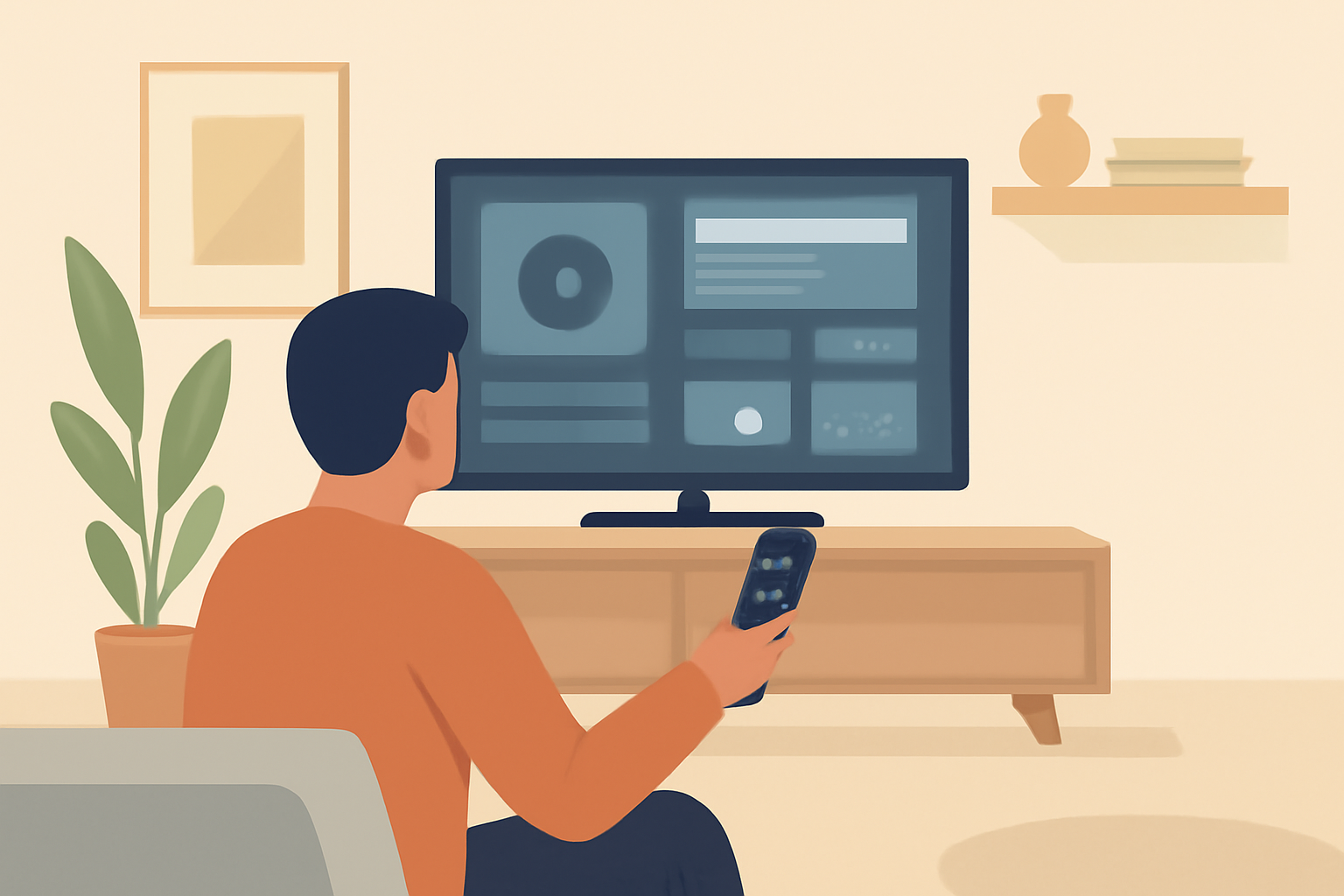
IPTV Smarters Pro is a popular player for organizing and viewing IPTV content. The app itself is a launcher that reads playlists and EPG data supplied by licensed providers. This guide walks you through a clear, step by step iptv smarters pro setup. You will learn how to install the app, activate it with a licensed service, and configure a reliable playback environment. Remember that using licensed IPTV services helps ensure stable streams, legal protection, and better user support. For readers already exploring why IPTV works as a modern option, you may find our article What Is IPTV? How Internet TV Actually Works helpful as a primer. If you want to compare options, check our IPTV vs Cable TV: Which Is Better in 2026?.
Getting a licensed service and the right hardware
Choose a legitimate provider
The core of a smooth iptv smarters pro setup is a legit IPTV service. Look for providers that offer official app access, transparent pricing, and licensed content. Beware of services that promise huge channel counts without licensing details. A reputable service will provide an M3U playlist or an Xtream Codes compatible login that lets you load channels directly into IPTV Smarters Pro. For guidance on selecting a legal option, see our buyers checklist in How to Choose a Legal IPTV Service: A Buyer’s Checklist.
Pick compatible hardware
IPTV Smarters Pro runs on several platforms, including Android devices, Fire TV sticks, Android TV boxes, and some smart TVs. A stable device with modern firmware will minimize buffering and glitches. If you want to compare devices, our device guides section has practical picks and setup tips in Device Guides (section). Pair your device with a solid Wi Fi connection and you’ll reduce hiccups during peak hours. For a broader look at how network quality affects streaming, our VPN & Privacy guide discusses fundamentals though you should rely on reputable privacy sources. For more on streaming options and privacy, see external sources like [Wi Fi Alliance](https://www.wi fi.org/) and standard references such as Wikipedia for background.
Confirm privacy and security
If you value privacy and data safety, consider enabling a trusted VPN with the provider’s guidelines. Always use a VPN as allowed by your local laws and your service terms. For background on streaming privacy, you can explore general resources like VPN & Privacy on our site and external explanations from reputable sources.
Installing IPTV Smarters Pro
Step 1: Install the app
On Android based devices, open the Google Play Store or the device app store and search for IPTV Smarters Pro. Install the app and grant necessary permissions for storage and media. On Fire TV or Android TV devices, navigate to the app store specific to the platform and install IPTV Smarters Pro. Some devices may require enabling app installation from unknown sources in settings if the official store version is not available; avoid sideload sources that look untrustworthy.
Step 2: Prepare your playlist and EPG data
Your licensed IPTV provider will supply either:
- A single M3U playlist URL
- An Xtream Codes login with server URL, username, and password
- An accompanying EPG file or URL for digital program guides
If you receive an M3U URL, you can load it directly into IPTV Smarters Pro. If you have an Xtream Codes login, you will configure the server details and credentials. For a clear explanation of how M3U playlists work, see our piece M3U Playlists Explained: How IPTV Channel Lists Work. If your provider offers an EPG URL or service, add it so the program guide lines up with channels.
Step 3: Configure the app
Open IPTV Smarters Pro and choose Add New User or Add Playlist. For M3U playlists:
- Enter a name for the playlist
- Paste the M3U URL provided by your licensed service
- Save and allow the app to fetch channel data
For Xtream Codes:
- Choose Xtream Codes API or similar option
- Enter the server URL, username, password, and a name for the profile
- Save and let IPTV Smarters Pro populate the channel list and grid guide
Step 4: Set up parental controls and preferences
If your household includes children, enable any built in parental controls and consider creating a separate user profile for kids. IPTV Smarters Pro supports multiple profiles; you can tailor channel access and EPG visibility per profile. For broader context on how to manage streaming content safely, see the IPTV content management discussions in our guide IPTV (section).
Step 5: Test playback
Start with a few channels you know are stable from your provider. Check different categories such as live sports, news, and movies. If a channel fails to load, verify the playlist URL or Xtream Codes credentials. It can also help to reload the playlist data or re-enter login details.
Fine tuning for reliability
Optimize streaming quality
Bandwidth and device performance influence the viewing experience more than most people expect. A reliable home network should stay steady during peak hours. If you experience buffering, try lowering the stream resolution within IPTV Smarters Pro or allocating a higher priority to streaming traffic on your router. To understand the general dynamics of IPTV technology, see our explainer What Is IPTV? How Internet TV Actually Works.
Manage EPG and data accuracy
EPG accuracy improves if your provider maintains a consistent data feed. If the guide shows incorrect times or wrong channel names, check whether the provider offers an updated EPG URL and re import it in the app. For more about program guides, see our EPG explained piece EPG Explained: How IPTV Program Guides Work (and How to Fix Them).
Keep software up to date
App updates often fix bugs and improve compatibility with newer playlist formats. Regularly check for IPTV Smarters Pro updates on your device’s app store. Similarly, ensure your streaming device firmware is current to maintain stability.
Troubleshooting common issues
Channel lists don’t load
If no channels appear after loading a playlist, check the following:
- Confirm the M3U URL or Xtream login is correct
- Test the URL in a browser or a dedicated IPTV test tool to validate accessibility
- Make sure your internet connection is stable and has sufficient bandwidth
Playback stalls or buffering
Buffering is usually a network problem or a mismatched stream quality setting. Start with a lower resolution if your internet connection fluctuates. If buffering continues, perform a quick router restart and consider moving the streaming device closer to the Wi Fi router or using an ethernet connection where possible.
Guide and metadata issues
If EPG data lags or channel metadata is missing, refresh the EPG source in IPTV Smarters Pro or request an updated EPG feed from your provider. Our guide M3U Playlists Explained: How IPTV Channel Lists Work includes methods to align playlists with metadata when needed.
Access issues with Xtream Codes
If you cannot log in to the Xtream Codes service, re enter the server URL, username, and password. Some providers rotate credentials or require additional security settings. If this happens, contact your licensed provider for updated login details.
Advanced configurations and best practices
Using multiple profiles in one app
IPTV Smarters Pro can manage several user profiles. This is useful if you share a device with family members who want to separate channels by preference or by parental controls. Create a profile for adults and a separate restricted profile for kids, ensuring each one has access to the appropriate channel categories only.
Integrating with external program guides
If your provider offers a separate EPG feed, you can often add an EPG URL within IPTV Smarters Pro settings. This helps the guide stay current and improve scheduling accuracy. If you want to see how guides are built and maintained, you can read about IPTV guides in our EPG explained resource mentioned above.
Privacy and security considerations
When using IPTV services, it is crucial to choose licensed sources and avoid sources that could inject malware or display unauthorized content. A solid security posture includes keeping your device firmware updated, using a trusted network, and restricting app permissions to only what is necessary for playback. You can learn more about privacy and network practices in our VPN & Privacy coverage and related posts, which explain how to maintain safe streaming.
Comparative notes: how IPTV Smarters Pro stacks up
| Feature | IPTV Smarters Pro | Alternative IPTV players | Notes |
|---|---|---|---|
| Source format support | M3U, Xtream Codes | varies by app | M3U and Xtream Codes are common for licensed providers |
| Profiles | Multiple profiles supported | Some apps support | Useful for family setups or separate content lines |
| EPG support | Yes, via provider feeds | Some competitors offer limited EPG | A solid EPG improves scheduling accuracy |
| Platform availability | Android, Android TV, Fire TV, some smart TVs | Broad, depends on app | Check device compatibility with your setup |
| Parental controls | Available | Varies by app | Helpful for shared devices and kids |
| Updates | Regular updates from developers | Varies | Regular updates improve reliability |
Best practices for choosing and maintaining your setup
- Always use a licensed IPTV service. It reduces the risk of unstable streams and legal concerns. For guidance, see our buyer oriented piece How to Choose a Legal IPTV Service: A Buyer’s Checklist.
- Keep your device firmware and the IPTV Smarters Pro app up to date. Updates often address compatibility issues with new playlist formats.
- Monitor your network performance and consider upgrading to a wired ethernet connection for the streaming device if wireless instability is a recurring problem.
- Learn the basics of how IPTV works to avoid common misconfigurations. A solid primer can be found in What Is IPTV? How Internet TV Actually Works if you want a quick overview before proceeding with setup.
Practical tips for a clean, long lasting install
- Use a dedicated streaming device where possible rather than a shared tablet or phone for TV viewing. This reduces accidental logouts and accidental changes to configuration.
- Document your playlist or Xtream Codes credentials in a secure note or password manager. If you rely on a single device for streaming, keep a backup of the login details in a secure place.
- Periodically verify the channel lineup with your licensed provider to ensure the feed remains current. Providers may update channel lists and schedules.
Related reading to deepen your understanding
- If you are curious about how channels are listed, check our article M3U Playlists Explained: How IPTV Channel Lists Work for a deeper dive into channel lists and how playlists reference channels.
- For a broader sense of where IPTV fits among other services, our IPTV vs Cable TV: Which Is Better in 2026? provides a side by side look at the advantages and drawbacks of each approach.
- For a general overview about live streaming and the ecosystem, our Live TV Streaming (section) and the IPTV (section) are good starting points.
Final checks before going live
- Confirm you are using a licensed service with IPTV Smarters Pro. Using unlicensed feeds can lead to blocked channels and legal issues.
- Double check your device compatibility and make sure your network is stable for the best experience.
- Review any parental controls and privacy settings to fit your household needs.
Bottom line
IPTV Smarters Pro setup is straightforward when you start with a licensed provider, load the correct playlist or Xtream Codes credentials, and tune the app preferences for your device and network. By following this guide you can achieve a reliable live TV experience while staying aligned with best practices for safety and legality. For ongoing reading, consult the related guides and keep your hardware and software current.
Bottom line
Frequently Asked Questions
Do I need a license to use IPTV Smarters Pro?
Yes. Use only licensed IPTV services to stay legal and avoid shutdowns or malware.
What hardware do I need to run IPTV Smarters Pro?
A modern streaming device or smart TV, stable internet, and a licensed IPTV service.
Is IPTV Smarters Pro safe for kids?
Use parental controls and restrict content with your provider, as with any streaming app.
This is an independent editorial site. We do not host, sell, or distribute any streams or subscriptions. Always verify that a service is properly licensed in your country. Some links may earn us a commission at no cost to you.