Roku Remote Not Working: Fixes That Actually Help
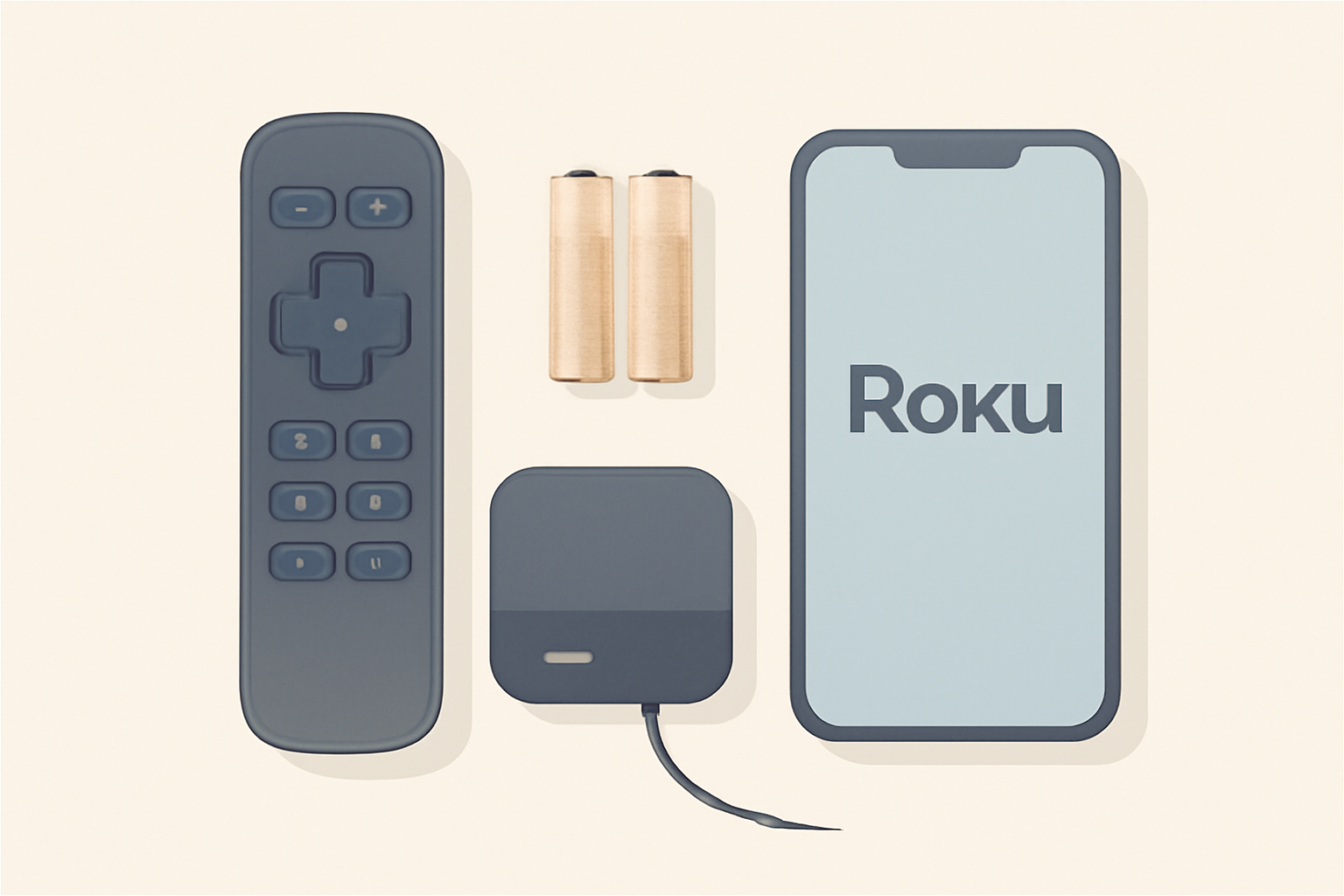
Roku remote not working: fixes for every model
If your Roku remote isn’t working, you are not alone. A lot of people rely on the precision of a well-functioning remote to navigate channels, apps, and settings. This guide walks you through practical checks, model differences, and reliable fixes so you can get back to streaming without guessing. You’ll learn how to identify IR versus enhanced remotes, how to re-pair, what to do about batteries or resets, and how to use the Roku mobile app as a backup remote. For broader guidance on devices you might consider alongside Roku, you can check our Best streaming device for 4K | Detailed 4K Device Comparison and our Fire TV Stick Setup for Streaming: The 10-Minute Complete Guide. For general setup ideas and privacy considerations, see the VPN & Privacy (section) and the Device Guides (section).
Descriptive heading Understanding IR versus enhanced remotes
Roku offers several remote types, and knowing which you have helps narrow the fix. The simplest distinction is IR versus enhanced remotes.
- IR remotes are the traditional, line of sight devices that rely on infrared signals. They do not require pairing with the Roku box, and they rely on batteries for power. If your IR remote isn’t working, the issue is often battery related or there could be something blocking the remote signal like a sofa or clutter between the remote and the device.
- Enhanced remotes are the newer, more capable devices. They talk to the Roku box via radio frequency (RF) with pairing. They can include voice search and volume controls. If an enhanced remote stops working, the pairing or firmware state could be the problem.
Understanding which type you own helps you execute the right steps. If you are unsure, reference the device’s packaging or the official support page at Roku Support. For broad context on how remotes interact with streaming hardware, you can also consult general setup guides such as Chromecast with Google TV: Setup and Casting, Explained for comparison, though keep in mind the Roku steps below are specific to Roku devices.
Descriptive heading How to re-pair an enhanced Roku remote
Enhanced remotes can lose their pairing state, which makes them seem invisible to the Roku player. The steps below cover most Roku streaming players and TVs.
Sub-point 1: Re-pair with the remote and the player
- Remove the batteries briefly, then reinsert them. If the remote still fails to respond, turn on the Roku device and keep the remote within about 5 feet of the player.
- On the Roku, go to Settings, then System, then Power if available, or simply use the on-screen menu to reach the remotes settings.
- Hold the pairing button on the remote until you see the pairing dialog on screen. On many enhanced remotes, the pairing button is located in the back or inside the battery compartment. You may need to press and hold for several seconds.
- When the system detects the remote, follow the on-screen prompts to complete pairing. If pairing fails, try again with a fresh battery and shorter distance.
Sub-point 2: If pairing fails repeatedly
- Ensure there are no interfering devices nearby, such as other Bluetooth or Wi-Fi devices that could cause radio interference.
- Update the Roku software. A firmware mismatch can sometimes block new or existing remotes from pairing properly.
- Consider a factory reset as a last resort, keeping in mind this will erase custom settings on the Roku device. After a reset, re-pair the enhanced remote using the steps above and re-download any apps.
If you want a structured walkthrough, the pairing steps are typically described in official guides on the Roku support site. If you’re exploring alternatives, our Best Streaming Device for 4K | Detailed 4K Device Comparison provides context on how different remote technologies work with various platforms.
Descriptive heading Battery and reset procedures
Batteries are the most common culprits for non responsive remotes. It is surprisingly easy to overlook simple battery issues.
Sub-point 1: Check and replace batteries correctly
- Use fresh AA or AAA batteries as recommended by the device. Do not mix old and new batteries.
- Ensure the battery orientation matches the plus and minus ends indicated inside the battery compartment.
- If the remote still does not respond after a replacement, test the device with another compatible remote if available or check if the remote’s IR window appears damaged.
Sub-point 2: Soft reset and factory reset
- A soft reset can sometimes fix a stuck state. Remove the batteries, unplug the Roku device from power for about 30 seconds, then plug back in and reinsert the batteries.
- If the problem persists, consider a factory reset as noted earlier and re-pair the remote afterward. For a broader look at device resets and privacy, see the VPN & Privacy (section) in our guide catalog.
Descriptive heading Using the Roku mobile app as a backup remote
The Roku mobile app is a useful backup remote when your physical remote fails or when the battery is dead.
- Install the Roku app on your iOS or Android device from the App Store or Google Play. The app can connect to the same network as your Roku device and let you control the player in much the same way as the physical remote.
- Open the app, choose your Roku device, and you should see a remote control icon. You can then navigate and launch apps or channels until you fix the actual remote.
- The app also offers voice search if your remote lacks voice control or if you want to search by speaking. For broader context about mobile control options and privacy considerations, see the VPN & Privacy (section) and the device guidance in Device Guides (section).
If you want to compare the approach of using a mobile app as a remote with other ecosystems, you might find value in articles like Fire TV Stick 4K Review: Still the Best Streaming Stick for Most People for a cross platform perspective.
Descriptive heading Common issues by model and quick fixes
Roku remotes can fail for several reasons, and the fixes vary a bit by model. Below are common issues and straightforward remedies.
- Remote not pairing after new batteries: Ensure you are within the recommended range and try the pairing sequence again. If a pairing dialog does not appear, try a different USB power source if your Roku remote is rechargeable and see if the device recognizes any remote activity on the home screen.
- Dead on arrival: If you just bought a new remote and it does not work, verify you are using an officially licensed Roku remote and that it is compatible with your Roku device model.
- Interference from other devices: Nearby Bluetooth devices or certain wireless devices can interfere with the remote’s signals. Relocate these devices if possible.
For broader device agility, you can browse the general setup and comparison content like Android TV Setup for Streaming: The Complete Guide, which helps you understand how remotes and control schemes differ across platforms.
Descriptive heading A practical table comparing IR and enhanced remotes
| Remote type | Signal method | Pairing required | Pros | Cons |
|---|---|---|---|---|
| IR remote | Infrared line of sight | No pairing required | Simple, low power, inexpensive | Needs line of sight, can be blocked by furniture |
| Enhanced remote | Radio frequency with pairing | Yes, typically via on-device prompts | Voice control, faster response, works beyond line of sight | Requires pairing and compatible hardware, may consume more power |
This table highlights why a remote might fail in different ways. If you have an IR remote, the fix usually centers on battery strength and line of sight. If you have an enhanced remote, focus on pairing stability and firmware updates. For more on device choices and how different remotes operate, see our overview in Best streaming device for 4K | Detailed 4K Device Comparison.
Descriptive heading When to contact official support
If none of the above steps resolves the issue, it’s time to reach out to official support. There could be a hardware fault with the remote or the Roku device itself. The support team can guide you through more advanced troubleshooting steps or help you arrange a replacement remote if your device is still under warranty. Official resources are available at Roku Support, which also contains model specific instructions and firmware update notes. For context on privacy and device security while troubleshooting, you might review related guides in the VPN & Privacy (section).
Descriptive heading Realistic expectations and when to replace
Remotes, especially enhanced ones, are technology products with a finite lifespan. If you consistently encounter failures after attempting manufacturer recommended steps, you should consider replacement. Replacement options should come from official channels to ensure compatibility and warranty coverage. For a broader sense of what modern streaming hardware offers, our Best Streaming Device for 4K | Detailed 4K Device Comparison article includes a comparative look at current models and features.
Descriptive heading Additional tips to improve reliability
- Maintain the Roku software up to date by checking for system updates. Firmware improvements can resolve remote communication issues.
- Keep the remote out of extreme temperatures and away from moisture. This helps prolong battery life and sensor reliability.
- If you are using a smart home setup, check for any automations that might affect the Roku’s network behavior or power state.
To explore similar setup challenges for other devices, see our Fire TV Stick Setup for Streaming: The 10-Minute Complete Guide and Chromecast with Google TV: Setup and Casting, Explained. These guides can help you understand how remotes and control apps interact with streaming devices in different ecosystems.
Descriptive heading Conclusion
A Roku remote not working can be a sign of something as simple as a dead battery or as involved as a pairing failure. Start with the type of remote you have, tackle batteries and basic pairing first, and then move toward reset procedures or using the Roku mobile app as a back up. If the issue persists, consult the official Roku support page for device specific instructions and ensure you are using licensed hardware designed for your Roku model. Keeping software updated and avoiding interference from other wireless devices are small steps that often prevent a new round of trouble.
Bottom line
Most remote problems are fixable with a methodical approach that starts with checking the type of remote, replacing batteries, and re pairing. When in doubt, use the Roku app as a backup remote so you can continue watching while you sort out the hardware issue. For more on related streaming devices and setup challenges, see our guide hub and related articles in the Device Guides section. If you need a broader context about streaming device choices, browse the Best Streaming Device for 4K comparison and the Fire TV setup guides linked above.
Frequently Asked Questions
Why does my Roku remote not respond at all?
Start with batteries, then check line of sight or RF compatibility. If nothing responds, re-pair the remote to the Roku player.
What is the difference between IR and enhanced remotes?
IR remotes use line of sight and batteries only, while enhanced remotes use wireless signals to pair with the Roku device and can include voice control.
Can I use my phone as a remote?
Yes. The Roku mobile app can act as a backup remote when the physical remote fails or is out of range.
This is an independent editorial site. We do not host, sell, or distribute any streams or subscriptions. Always verify that a service is properly licensed in your country. Some links may earn us a commission at no cost to you.