What Is a VPN Kill Switch and Why It Matters
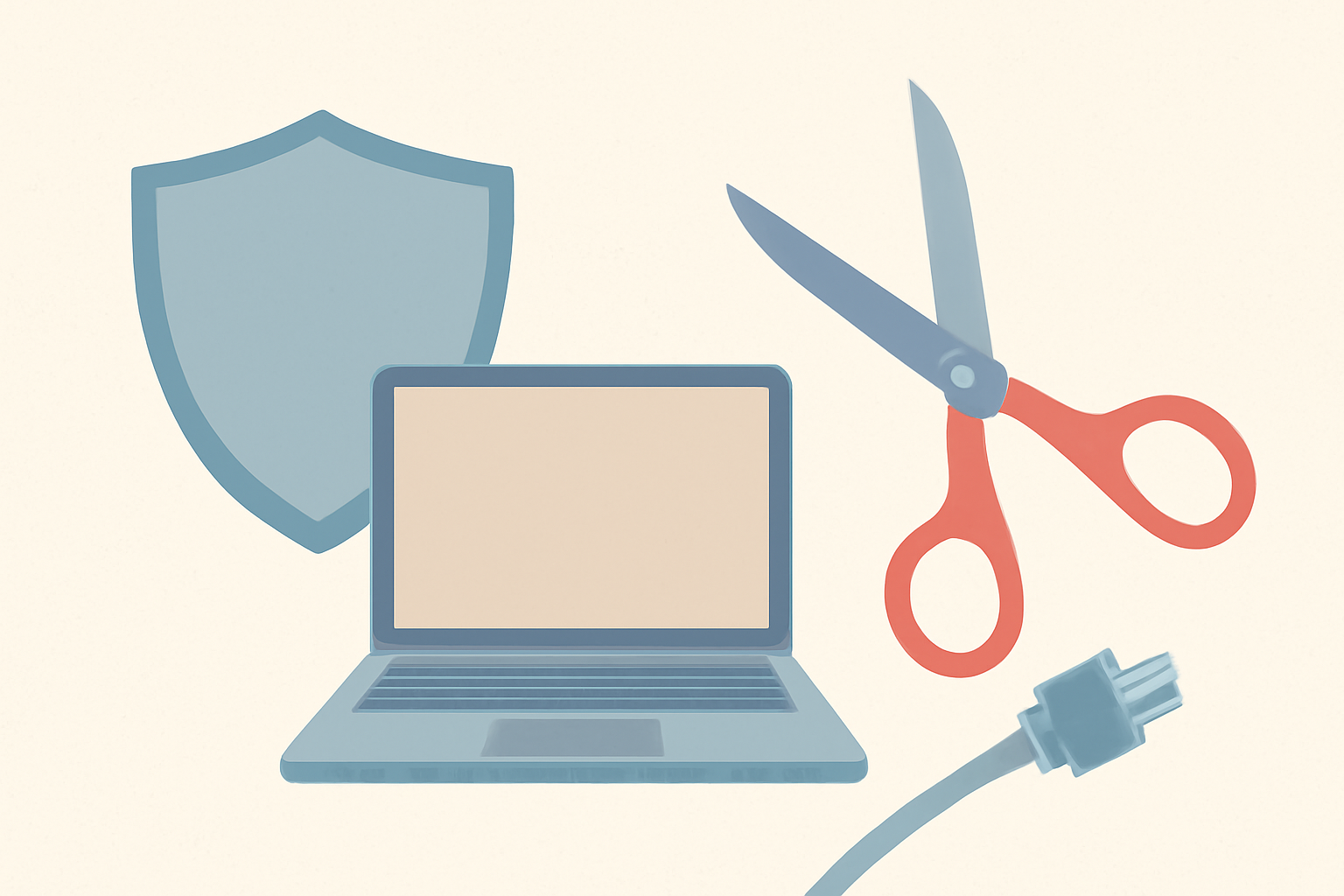
What is a VPN kill switch and why it matters A VPN kill switch is a safety feature designed to prevent your real IP address and other identifying data from leaking if a VPN connection unexpectedly drops. If the secure tunnel is interrupted, the kill switch automatically blocks all network traffic until the VPN reconnects. This safeguard helps you stay private and reduces the risk of exposing sensitive information during moments of instability. You should understand how it works, whether you need an app-level or system-level option, and how to verify that it functions properly.
How a kill switch works, in simple terms
- The VPN creates an encrypted tunnel between your device and the VPN server. If the tunnel fails, the device could revert to the normal, unencrypted connection.
- A kill switch monitors the health of the VPN tunnel. When it detects a drop or failover, it blocks outbound and inbound traffic at a specific point in the network stack.
- The result is that your applications cannot send or receive data that would reveal your real location or IP address until the VPN comes back online.
There are two general approaches you will encounter: app-level kill switches and system-level kill switches. Each has benefits and tradeoffs, which we will break down in the next sections.
App-level vs system-level kill switches
App-level kill switch
- Tied to a single VPN application. If the app disconnects, the app stops network traffic for that program.
- Benefits: Simple to configure for users who rely on a specific VPN client; less impact on other apps.
- Drawbacks: If you use multiple VPN apps or system services that route traffic outside the app, you might still leak data through other channels.
System-level kill switch
- Enforces traffic blocks at the operating system level, affecting all apps and background processes.
- Benefits: Provides broad protection; reduces the chance of any data leaking if the VPN drops.
- Drawbacks: Slightly more complex to set up in some environments and may require specific OS features or additional software.
When selecting a provider, check whether they offer a system-wide kill switch in addition to an app-level option. Some VPNs implement both, giving you layered protection. For users who stream or work across multiple apps, system-level protection is often the safer default.
When a kill switch can save you
- On unstable Wi-Fi networks: Public networks can cause frequent VPN drops as devices roam between access points.
- When using mobile data: Cellular networks can disconnect or handoff between towers, momentarily interruptting the VPN tunnel.
- During server transitions: The VPN may switch servers for load balancing or performance, which can briefly interrupt the tunnel.
- While avoiding leaks during app updates: Sometimes a VPN client updates require temporary disconnects.
In these scenarios a kill switch keeps your activity shielded, preserving privacy and reducing the risk of exposing your true IP. If you live behind strict network controls or rely on streaming services that require consistent routing, this feature becomes especially valuable.
How to enable it on major providers
Note that the exact steps vary by platform and provider. Here are general paths for popular VPNs and a few tips to follow. If you want a user-friendly overview of top options, see our Best vpn for streaming in 2026 guide and our Best VPN for Netflix That Actually Works review for provider specifics.
Windows
- Open the VPN client and sign in.
- Look for a section labeled “Kill Switch” or “Network Lock.”
- Enable the switch and choose whether to block all traffic or limit to the VPN connection.
- If available, enable a system-wide option so other apps cannot bypass the VPN during a drop.
macOS
- Launch the VPN app and navigate to Settings.
- Enable the kill switch feature, if present.
- Some macOS builds require additional permissions; grant any prompts for network filtering.
iOS and iPadOS
- Many iOS VPNs provide a kill switch within the app. Activate it in Settings or within the app’s connection controls.
- System-level kill switches are less common on iOS, so rely on the app’s implementation and ensure the device uses trusted Wi-Fi networks.
Android
- Open the VPN app and find the kill switch under Settings or Security.
- If the app offers a system-level toggle, enable it. This is especially helpful on devices with multiple apps that may leak DNS or IP data.
Routers and system-wide solutions
- Some providers offer router-level protection by configuring OpenVPN or WireGuard on a compatible router.
- When you use a router with a VPN, ensure the router’s firmware has a reliable kill switch or traffic blocking feature to maintain end-to-end privacy.
For each provider, you can often verify functionality by temporarily disconnecting the VPN and confirming there is no IP or DNS leak. If you see your real IP address appear in an online check, the kill switch did not activate properly. The testing process is described later in this article.
How to test a VPN kill switch effectively
Testing should be done in controlled conditions to confirm the behavior you expect. Here is a practical approach that applies across platforms.
Step 1: Confirm the default state
- Connect to the VPN and observe that your IP address shows as the VPN server location in an IP check tool.
- Take note of the location and the service you are using. This baseline helps you see if the kill switch is working later.
Step 2: Trigger a controlled drop
- Disable the VPN temporarily from the client or disconnect the network interface if you’re comfortable with more direct control.
- If you can simulate a network drop physically, you can unplug the Ethernet cable or disable Wi-Fi momentarily, then reconnect.
Step 3: Monitor for leaks
- Use an IP and DNS leak test while the VPN is disconnected to confirm your real IP is not leaking unintentionally through other routes.
- Some leaks may show up only under specific conditions such as DNS lookups or WebRTC leaks. If you see leakage, revisit your kill switch settings or consider additional privacy tools.
Step 4: Reconnect and verify restoration
- Reconnect the VPN and verify that your traffic flows through the encrypted tunnel again.
- Confirm that your IP returns to the VPN server location and that no additional data is exposed during the reconnection.
If your tests reveal leaks or that data is reaching the internet without protection, you should reconfigure the kill switch, update the VPN client, or reach out to customer support for guidance. You can also read more about related privacy measures in our DNS for Streaming: Does Changing It Actually Help? guide for preventing leaks at the DNS level.
Real-world considerations and best practices
- App updates may temporarily disable the kill switch. After updates, recheck the setting and perform a quick test to ensure it remains active.
- On some devices, background services may try to route traffic around the VPN. A solid system-level kill switch reduces this risk.
- Always use reputable, licensed VPN services. Free or unverified VPNs can be unreliable and may mismanage your data despite a kill switch. For a broader discussion on safety, see our article Are free vpns safe? What you should know.
- If you depend on streaming content, a kill switch helps prevent momentary exposure during connection hiccups. This is especially important when using services that actively monitor IPs to enforce regional restrictions.
A quick comparison: kill switch features across popular providers
| Provider | App-level kill switch | System-level kill switch | Notes |
|---|---|---|---|
| Provider A (example) | Yes | Yes | Strong cross-device protection, easy toggles |
| Provider B (example) | Yes | No | App-level protection only; verify DNS handling |
| Provider C (example) | Yes | Yes | Comprehensive coverage with router support |
| Provider D (example) | Yes | Yes | Good for mobile devices and desktops alike |
This table shows a snapshot of how different providers may implement kill switches. The right choice depends on your typical use cases like mobile streaming, gaming, or working from a home office. If you want to compare streaming performance and privacy features before choosing a service, you can consult our guides on the best live tv streaming services and the best vpn for streaming in 2026.
Common myths and clarifications
- Myth: A kill switch makes a VPN completely invisible. Reality: It reduces the chance of leaks but does not guarantee anonymity. Your browser fingerprints, WebRTC configurations, and other app behaviors can still reveal information if you are not careful.
- Myth: If the VPN reconnects automatically, the kill switch is unnecessary. Reality: Reconnection can be momentary and may expose data during the gap. A kill switch helps bridge that gap by blocking traffic until the VPN is restored.
- Myth: Kill switches slow down your internet more than normal. Reality: The feature itself adds minimal overhead. If you notice significant slowdowns, check server load, protocol, or encryption settings, or read our piece on whether a VPN slows down your internet.
Why you should test regularly
- Software updates can alter kill switch behavior. A periodic test helps catch regressions or misconfigurations.
- Network changes, such as moving from Wi-Fi to a wired connection, might affect how the kill switch operates.
- Regular testing gives you peace of mind when privacy is critical for the work you do online.
To deepen your understanding of related privacy protections, visit our section on VPN and privacy and our guide on best practices for Android devices. You may also find it useful to review our articles on streaming privacy and how to optimize your home network for better privacy and performance.
Practical setup tips for real-world use
- Pair a kill switch with a trusted DNS configuration. In addition to a kill switch, setting DNS to a privacy-respecting resolver reduces leakage risk even when the VPN connection drops. For more details on DNS choices, see our DNS for Streaming: Does Changing It Actually Help?.
- If you use multiple devices, such as a laptop and a smartphone, verify that both devices have kill switches activated or opt for a system-level solution across the network by configuring a compatible router or gateway device.
- Consider a VPN with reliable customer support. If you encounter an unusual drop pattern or leaks, an official support channel can help you adjust settings quickly.
Conclusion: what is a vpn kill switch and why you should care
A VPN kill switch is a critical privacy feature that prevents data leakage when a VPN connection fails. Understanding the difference between app-level and system-level options helps you decide how to protect your traffic most effectively. Enabling the feature on major providers, testing it regularly, and pairing it with good DNS practices and trusted streaming configurations will give you a safer online experience. If you are evaluating VPNs for streaming, Android devices, or Firestick use, make sure the kill switch is part of the package and that you can verify its effectiveness in real-world conditions. For deeper context on streaming and privacy, check our [Best vpn for streaming in 2026] guide and our editor-approved articles on streaming safety.
Bottom line A VPN kill switch acts as a last line of defense to keep your activity private when the VPN falters. By choosing a provider that offers both app-level and system-level protections, testing the feature, and staying vigilant about DNS and leaks, you can maintain a higher standard of online privacy in everyday browsing, streaming, and remote work.
Bottom line: test, configure, and protect with a solid kill switch as part of your privacy toolkit. For more on how to keep streaming private and secure, see our guides on streaming privacy and related setup tips in the VPN and privacy section.
Frequently Asked Questions
What does a VPN kill switch do?
It blocks traffic if the VPN connection drops, preventing data leaks.
Should I use an app-level or system-level kill switch?
System-level offers broader protection across all apps, while app-level protects only the VPN client.
How do I test a VPN kill switch?
Simulate a drop and verify no IP or DNS leaks occur.
This is an independent editorial site. We do not host, sell, or distribute any streams or subscriptions. Always verify that a service is properly licensed in your country. Some links may earn us a commission at no cost to you.