Firestick not connecting to wifi: practical fixes
Quick checks you can try right away
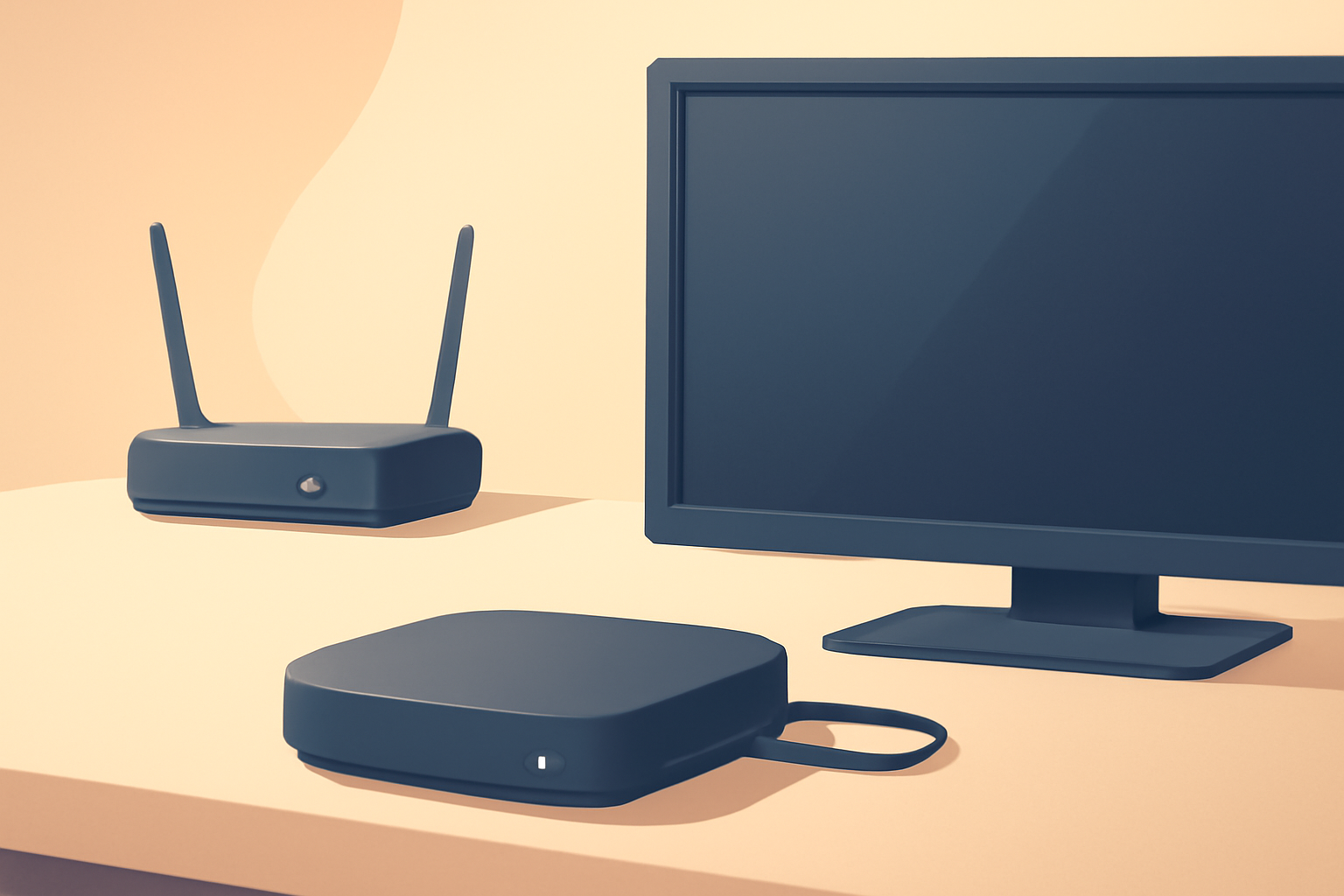
If your firestick not connecting to wifi, start with the easiest fixes. These quick checks fix the majority of home network glitches and can save you from diving into complex settings. First, unplug the Firestick from the HDMI port and the power supply for about 30 seconds, then plug it back in. This simple restart can clear minor software hiccups that block wifi. While it reboots, verify the TV input and confirm the correct home network is in range.
Next, check the router is emitting a stable wifi signal. Move the router closer to the viewing area if possible, aiming for a direct line of sight with minimal walls or large metal objects in between. If you have multiple wifi bands, try connecting to the 2.4 GHz band rather than 5 GHz, since 2.4 GHz travels farther and can be more forgiving with walls. If your network uses a guest or separate network for devices, ensure the Firestick is allowed to join that network and that any MAC address filtering is disabled or whitelisted for the device.
For most people the next step is to re-enter the wifi password on the Firestick. Go to Settings > Network and select your network name. If the password was entered incorrectly even once, the device will fail to connect. If you are sure the password is correct and the Firestick still refuses to join, try forgetting the network on the Firestick and then reconnect. If the device still cannot see any wifi networks, continue to more advanced steps below.
If you want to explore more about setup specifics while you troubleshoot, you can check our Fire TV Stick Setup for Streaming: The 10-Minute Complete Guide, which includes a simple step by step to reconfigure the stick. If the issue persists and you are curious about other streaming devices, see our Chromecast with Google TV: Setup and Casting, Explained for context on how Wi Fi settings can vary across platforms.
Verify the Firestick is on the right network and has the correct settings
One common reason a firestick not connecting to wifi is an incorrect network selection. On the Firestick, navigate to Settings > Network. The list should show your home network. If you see an older network name or a network you do not recognize, select it and choose Forget Network, then reconnect to the correct one with the proper password. If the network does not appear at all, this can indicate a broader network issue or a radio issue within the Firestick.
If the Firestick can see other networks but not yours, ensure the router is broadcasting the network you want to use. Some routers offer a guest network option that isolates devices. In this case connect the Firestick to the main network rather than the guest network. If your router supports both 2.4 GHz and 5 GHz bands, you may want to temporarily disable one band to force the Firestick to connect to the other. For many homes the 2.4 GHz band offers the strongest compatibility with streaming devices.
If your router is using advanced features like MAC address filtering, ensure the Firestick MAC address is whitelisted. You can find the MAC address on the Firestick by going to Settings > My Fire TV > About > Network. If your network uses WPA3 security, some older devices may have trouble connecting. Temporarily temporarily switch the router to WPA2 if your hardware supports it and see if the Firestick connects. After you verify connectivity, you can switch back to the preferred security setting.
If you want a deeper guide on setting all the devices up from scratch, read our guide on Fire TV Stick Setup for Streaming: The 10-Minute Complete Guide, which walks you through connecting to wifi and configuring basic network settings. For a broader comparison of streaming device features and how wifi interacts with them, the Fire TV Stick Review also helps you compare stability across devices.
Router side troubleshooting and wifi signal improvements
When the Firestick not connecting to wifi persists despite correct passwords, you should consider the router configuration. A crowded network or a weak signal can cause the Firestick to fail to connect or keep dropping the connection during streaming. Here are practical router side steps you can take:
- Reboot the router and modem. Power off the router for 30 seconds and then back on. If you have a combined gateway, restart the whole unit, including the modem and router if separate. This can clear stale DHCP leases and reset radio channels that may be congested.
- Update router firmware. Check the router manufacturer’s site or your ISP’s support page for the latest firmware. A firmware update can fix wifi connectivity issues with certain devices, including streaming sticks.
- Change the wifi channel. If your router uses a crowded 2.4 GHz channel like 6 or 11, switch to a less congested channel. Many routers have an auto channel feature but manual selection can improve stability for devices that struggle with interference.
- Enable or adjust band steering. Some routers automatically push devices toward 5 GHz when within range. If the Firestick struggles on 5 GHz due to distance, you might turn off band steering and let the Firestick stay on 2.4 GHz, or vice versa depending on your layout.
- Set a stable DNS on the router. If the device occasionally connects but cannot reach streaming services, a DNS issue could be at play. Many people use a reputable DNS like 1.1.1.1 or 8.8.8.8 as a test. Keep in mind DNS changes can affect all devices on the network.
For additional context on how to set up a streaming device on a router, you can view our Fire TV Stick Setup for Streaming: The 10-Minute Complete Guide and our Live TV Streaming section for best practices on network setup when watching live channels.
DNS tuning and caching
If your router DNS is unreliable, the Firestick may fail to resolve some domains quickly, which can feel like a wifi connectivity problem. On the device you can set DNS if your router supports it or use a DNS on the Firestick itself by entering a static DNS server in the network settings. If you set a custom DNS on the Firestick, choose a reputable option from a well known provider and then test the connectivity from the Firestick again.
For additional context on DNS related to streaming and privacy, see our VPN & Privacy section on the site. You can also read more about 4K streaming and when it is worth it, which gives you an idea of how your connected setup affects performance.
Practical hardware checks and power considerations
If your Firestick is not connecting to wifi but another device on the same network connects fine, there may be a stricter hardware issue with the Firestick. Handle these steps carefully:
- Check USB power supply and cable. A weak power supply can cause the Firestick to behave unpredictably. Use the original power adapter if possible, making sure the cable is not damaged. Do not use a USB port on the TV to power the Firestick if the port is underpowered.
- Inspect the HDMI connection. A loose HDMI connection can cause intermittent issues with the device recognizing the network or receiving updates. Ensure the HDMI is firmly seated in the port and that you are on the correct input on the TV.
- Factory reset as a last resort. If the Firestick continues to reject wifi networks after trying all other fixes, you may consider a factory reset from Settings > My Fire TV > Reset to Factory Defaults. This clears all apps and settings but returns the device to a clean state. After the reset, set up wifi again from scratch.
If you want step by step refresher on a full reset and reconfiguration, check our Fire TV Stick Setup for Streaming: The 10-Minute Complete Guide and compare with other devices in our Fire TV Stick Buffering guide for more fixes you can try if you notice buffering even when wifi is stable.
Advanced setting tweaks you can test
If the basic steps do not fix the problem, you may explore a few advanced tweaks. Keep in mind these steps require careful handling so you do not disrupt stability across your network.
- Assign a static IP to the Firestick. In your router, reserve an IP address for the Firestick based on its MAC address and then configure the Firestick to use that IP. This ensures the device does not frequently renegotiate its IP, which can cause brief disconnects.
- Test with a different security mode. If the router uses WPA3, switch to WPA2 mixed mode temporarily. Some legacy devices experience issues with newer encryption. After you confirm connectivity, you can revert to the preferred setting if possible.
- Disable IPv6 temporarily. Some networks and devices have trouble with IPv6. If you see issues after connecting, disabling IPv6 on the router for the moment can help identify whether IPv6 is the root cause.
- Check QoS settings. If your router supports quality of service rules, you can prioritize the Firestick’s traffic to improve responsiveness when other devices are streaming.
For more context on related setups, you can read about Chromecast and other streaming devices to understand how network settings vary by platform. Our Chromecast with Google TV: Setup and Casting, Explained guide is a good reference. And if you want a broader picture of the streaming landscape, check our 4K Streaming Explained guide.
Quick-tab comparison of common wifi fixes
| Fix | What it does | Typical effect on Firestick wifi |
|---|---|---|
| Reboot devices | Clears temporary glitches | Often resolves freezes and minor disconnects |
| Forget and reconnect network | Removes incorrect credentials | Reestablishes a clean connection |
| Move closer to router | Improves signal strength | Reduces buffering and dropouts |
| Use 2.4 GHz band | Better range through walls | More stable with distance |
| Change router channel | Reduces interference | More reliable connection in busy environments |
| Update firmware | Fixes known bugs | Improves compatibility and stability |
| Change DNS | Improves name resolution | Faster connections to streaming services |
When to contact support
If none of the fixes above address the problem, there may be a hardware fault with the Firestick or a more complex network issue. Contact the device manufacturer support for the Fire TV Stick, or your internet service provider for network troubleshooting. If you suspect a broader network privacy or security concern, you can consult our VPN & Privacy resources for additional guidance on securing your streaming setup and understanding how DNS and VPNs affect connectivity.
If you want to read more about related topics, our Fire TV Stick Buffering: 9 Fixes That Actually Work provides additional context on maintaining stable streaming. For comparisons with other devices you might consider, our Fire TV Stick 4K Review: Still the Best Streaming Stick for Most People offers a practical perspective on where the Firestick stands today.
Real world examples and best practices
A lot of homes see a significant improvement simply by moving the router to a central location, away from walls and metal objects. You should also ensure there are no large appliances or microwaves near the router that could introduce interference. If you are using a mesh wifi system, ensure the Firestick is in range of a node with a strong signal. In some layouts a single router suffices and in larger homes a mesh system gives the best coverage.
If you want to compare different setups, you can explore the setup guides for other platforms to see how they handle wifi. For example, our Apple TV 4K Setup for Streaming: Settings That Actually Matter or Android TV Setup for Streaming: The Complete Guide provide context on how different devices interact with home networks.
Privacy and security considerations
When you adjust DNS or network settings, you might be concerned about privacy. It is wise to use trusted DNS providers and ensure your router’s security remains strong. If you want to learn more about how to protect privacy on home networks while streaming, see our VPN & Privacy section and related guides. Keeping devices updated and using reputable services improves reliability and security.
Final checks before concluding
- Confirm the Firestick is running the latest software. Go to Settings > My Fire TV > About and check for system updates. Installing updates can fix connectivity issues caused by outdated software.
- Verify other devices can connect to the same wifi network without issue. If multiple devices struggle, the router or internet connection may be at fault rather than the Firestick.
- Try a different wifi network if possible. Connecting the Firestick to a mobile hotspot or a different router helps you confirm whether the problem is device specific or network related.
If you need more context on how to set up streaming across different devices, you can follow our internal cross references for setup guides such as [Fire TV Stick Setup for Streaming: The 10-Minute Complete Guide], [Chromecast with Google TV: Setup and Casting, Explained], or Roku Setup for Streaming: Simple Device, Smart Settings. These guides help you understand the common steps involved and how a wifi problem fits into the broader picture of device configuration.
Bottom line
A firestick not connecting to wifi can usually be resolved with a sequence of quick checks, router adjustments, and careful review of network settings. Start by rebooting the devices, then verify the network name and password, and consider moving to a less crowded wifi band or changing the router channel. If the problem persists, adjust DNS or DNS related settings on the device or router and consider a factory reset as a last resort. By following these steps in order, most users regain reliable wifi connectivity and can resume watching their favorite live streams without interruptions.
Bottom line: with patient, methodical troubleshooting you can typically restore a stable Fire TV Stick wifi connection and get back to watching your favorite channels. For ongoing guidance and extra tips on getting the most consistent streaming experience, see our Fire TV Stick Buffering guide and the setup guides for related devices. For privacy minded readers, remember to review our VPN & Privacy resources as you refine your home network.
Frequently Asked Questions
What should I try first if the firestick wont connect to wifi?
Start with quick checks like power cycling the device and confirming the wifi password. If that fails go to network settings and verify the connection type.
Can changing DNS help a firestick not connecting to wifi?
Yes, using a different DNS can improve name resolution and connectivity on some networks.
Is there a hardware issue I should consider?
If the Firestick shows no wifi networks or keeps dropping, there may be a hardware issue or a router problem. Try a different device to confirm.
This is an independent editorial site. We do not host, sell, or distribute any streams or subscriptions. Always verify that a service is properly licensed in your country. Some links may earn us a commission at no cost to you.