How to install kodi on firestick
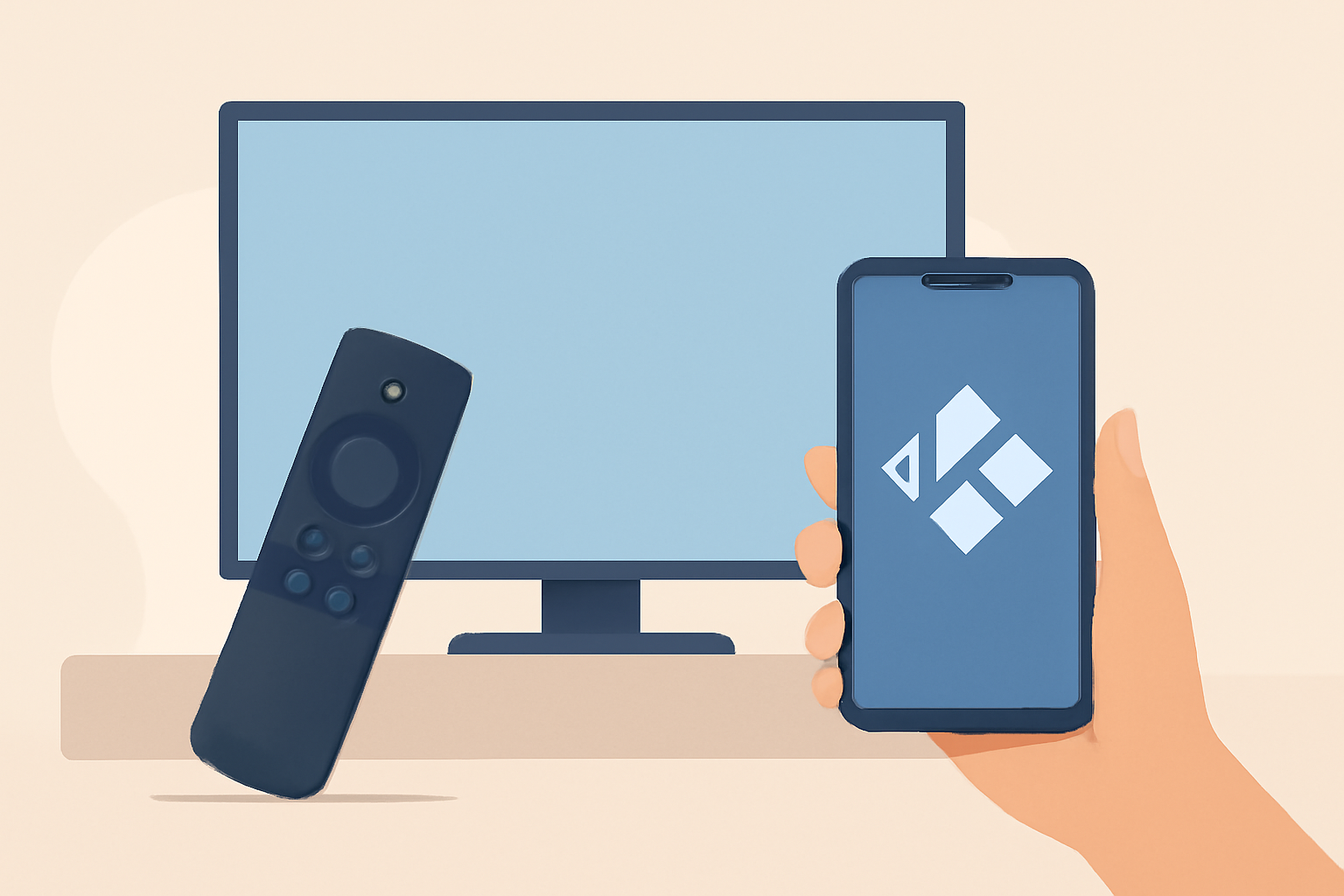
Welcome to a practical guide on how to install Kodi on a Firestick. The goal here is to sideload a clean, official Kodi build using Downloader and complete a proper first run setup. You’ll learn the exact steps, what to avoid, and how to keep your streaming experience stable and legal.
Why Kodi on a Firestick and what to expect
Kodi is a flexible media player that can run on many devices, including Firestick. When you install Kodi on a Firestick through the official Kodi build, you get a capable media center that can handle local files, network shares, and a growing collection of add-ons that are well regulated. This approach avoids risky third party apps and keeps your device on a clean, supported path. If you want a quick start, you can read how to speed up a slow Firestick and then return to the Kodi setup step by step. For more general streaming setup context, you might check our Fire TV Stick Setup for Streaming: The 10-Minute Complete Guide and our overview of live TV options in the Live TV Streaming section. When you are ready, proceed with the Downloader method and the official Kodi build.
What you need before you start
- A Firestick or Fire TV device running a recent version of Fire OS.
- An active internet connection with a stable WiFi network. Expect typical streaming devices to operate best around 15-25 Mbps for HD playback, though Kodi itself can handle lower speeds for basic playback.
- The Downloader app installed from the Amazon Appstore. Downloader is widely used to sideload apps from outside the official store.
- The official Kodi installer file from kodi.tv. Do not use modified builds or third party installers.
- A short USB-C or USB-A to micro USB cable is handy only if you plan to attach external storage. For most streaming purposes you won’t need it.
- A clean first-run setup plan. After installation, you will want to configure basic settings, add your preferred library sources, and adjust privacy settings.
Step by step: install Kodi on Firestick using Downloader
Step 1: Enable unknown sources and prepare the Firestick
- Open Settings on the Firestick, go to My Fire TV or Developer options, and enable Apps from Unknown Sources. This setting is what allows Downloader to install apps from outside the Amazon Appstore.
- Confirm the prompt about safety. It is important to keep your system secure by only installing the official Kodi build and avoiding any suspicious files.
- Install Downloader from the Amazon Appstore if you have not already. You will use Downloader to fetch the Kodi installation file.
Step 2: Install Downloader and navigate to Kodi download
- Launch Downloader. In the URL field, enter the official Kodi download page for the ARM architecture compatible with Firestick. The site provides an installable file that matches your device, so always use the official source.
- Once you reach the Kodi download page, locate the app package for the ARM device and click download. Downloader will store the file on the Firestick.
Step 3: Install Kodi from the downloaded file
- After the download finishes, Downloader will prompt you to install the APK or package. Click Install and wait for the process to complete.
- When the installation finishes, you can choose to open Kodi immediately or return to the Firestick home screen.
Step 4: First run setup and basic configuration
- Open Kodi for the first time. Kodi will perform a first-run setup to configure basic preferences such as language, video output, and library options.
- When asked about data sharing and privacy, review the options and disable any telemetry that you do not want to share with third parties. For privacy concerns, consult reputable sources such as [Wi-Fi Alliance] or similar privacy standard references to understand how to configure network settings safely.
- Because you are using a Firestick and the Kodi official build, there is no need to sign into external services right away unless you want to use a cloud library. This is a good time to connect to a media library if you have local or network storage.
Step 5: Configure video and audio output
- Go to Settings, then System, and adjust the Display settings to match your TV. If you have 4K capability, ensure you set the appropriate resolution and enable appropriate HDR options if your TV supports them.
- Check the Audio settings to ensure passthrough or Dolby Digital settings align with your AVR or soundbar. Correct configuration here improves the overall playback experience.
Step 6: Add official add-ons and libraries
- Kodi’s strength lies in its official add-ons and built-in libraries. Only use official, licensed add-ons to stay within legal and safe usage guidelines.
- Navigate to the Add-ons menu and enable the official repositories. From there you can install video add-ons that are properly licensed or add local network shares to your library.
- If you plan to use live TV functionality, rely on licensed sources and comply with regional broadcasting rules.
Step 7: Perform a quick check and a reset if needed
- Play a sample video to verify video and audio playback. If you encounter buffering or performance issues, consult our Firestick troubleshooting guides for practical fixes. If issues persist, you can reset the Firestick and reconfigure from scratch using a recommended approach such as the how to reset a firestick for quick fixes.
- For ongoing performance improvements, consider the tips in How to speed up a slow Firestick and ensure your network setup is optimized.
What to avoid and best practices
- Do not install any cracked or pirated add-ons or builds. Stick to the official Kodi build and licensed add-ons only. Using unofficial or pirated content can expose you to malware and legal risks.
- Avoid using third party repositories that are not official. They may host compromised add-ons that change behavior on your device.
- Regularly update Kodi via the official channels and keep your Firestick firmware current. This helps reduce security risks and compatibility issues.
Quick reference table: Kodi on Firestick setup at a glance
| Step | What to do | Estimated time | Notes |
|---|---|---|---|
| 1 | Enable unknown sources in Firestick settings | 2 minutes | Access developer options from Settings |
| 2 | Install Downloader from the Amazon Appstore | 3 minutes | Needed to sideload Kodi |
| 3 | Download Kodi from the official site | 5 minutes | Use the ARM compatible file |
| 4 | Install the Kodi APK on Firestick | 5 minutes | Follow on-screen prompts |
| 5 | Run first-run setup | 5-10 minutes | Configure language, video, audio, and privacy |
| 6 | Add official add-ons and libraries | 5-15 minutes | Stick to licensed sources |
| 7 | Verify playback and adjust settings | 5 minutes | Test a sample video |
Tools and resources for Kodi on Firestick
- Official Kodi site for the installer: Kodi is available from the official site at kodi.tv. Always ensure you are downloading the correct architecture file for your Firestick. Using the official site helps avoid tampered packages and keeps your system safer.
- General streaming setup guidance: Our guides on Fire TV Stick Setup for Streaming and related hardware can help with the broader environment in which Kodi runs. See the Fire TV Stick Setup for Streaming guide for a broader baseline to follow.
- Privacy considerations: When streaming through any app, keep privacy in mind. It can be useful to review general privacy best practices on trusted technical resources such as the Wi-Fi Alliance and major privacy guides.
- Related device guides for a broader view: If you want to broaden your setup, you can explore the Chromecast with Google TV setup guide or other device guides to compare how different platforms handle media playback.
Visual and security considerations for the Firestick setup
- Hardware compatibility: The Firestick uses a specific ARM architecture. Always select the official Kodi build compatible with Fire OS on your device.
- Network considerations: A reliable home network improves the Kodi experience. If your streaming is hampered by WiFi issues, consult our Firestick buffering fixes and practical wifi tips. Sometimes changes to router settings or network placement can yield smoother playback.
- Updates and maintenance: Regularly check for updates to Kodi and the Firestick operating system to maintain a secure and smooth experience.
Integrating Kodi with other services
- Local and network libraries: Kodi can index media from local drives or network shares. It is a practical approach if you maintain a media library at home rather than streaming content exclusively from external sources.
- Official add-ons: Focus on official add-ons supplied by Kodi’s repository. They provide a safe way to access licensed content and avoid legal issues that can arise with unverified sources.
- Live TV and IPTV considerations: If your interest is live TV, ensure you use licensed services and follow any regional licensing requirements. Our IPTV section covers general considerations for legal streaming options.
Troubleshooting at a glance
- If Kodi does not install, verify that Downloader has the necessary permissions and that you are downloading the correct file for Firestick. Revisit the unknown sources setting if something seems blocked.
- If playback is choppy, check your video settings, ensure the Firestick and TV are aligned in resolution, and test with a different HDMI port or HDMI cable with lower interference.
- If you encounter buffering during streaming, verify your internet speed and stabilize the network. You can also adjust buffering settings inside Kodi, but avoid risky third party optimizations.
Additional reading and related topics
- For a broader sense of streaming devices, you may want to read about the Fire TV Stick 4K and the general setup differences with other streaming devices. Our in-depth review of the Fire TV Stick 4K can provide context about performance and user experience.
- To understand how to structure your home streaming setup for maximum efficiency, explore how to cut the cord with live TV streaming and look into best live tv streaming services for 2026.
First-run considerations and ongoing care
After completing the first-run setup for Kodi on Firestick, take a short period to reflect on your preferred layout. Decide whether you want a simple media library or a more elaborate setup with multiple libraries and network shares. The right balance will depend on your living room environment and how often you watch content from different sources. If you ever need to revisit the setup, you can quickly revisit Step 6 to adjust add-ons or library sources.
Final recommendations
- Stay with the official Kodi build and licensed add-ons. This keeps your Firestick safe and provides a stable experience over time.
- Document your configuration so you can replicate it on other devices in your home if needed. A simple checklist helps when you set up Kodi on another Fire TV device or a secondary TV.
- Use reliable network conditions and keep your privacy in view. Regularly review your security settings and consider trusted resources for privacy and security best practices.
Closing: how to install kodi on firestick and stay compliant
Installing Kodi on a Firestick using Downloader with the official Kodi build is a solid way to enjoy a focused media center while staying within recommended safety and legal boundaries. If you want to keep your configuration straightforward and avoid risky sources, follow the steps outlined above and rely on licensed add-ons. For broader context on device setups, you can compare with our guides to other streaming platforms like Android TV and Chromecast with Google TV. And if you want to see how other devices handle streaming, check our Fire TV Stick Setup for Streaming guide for a quick, practical baseline.
Bottom line With the official Kodi build installed on your Firestick and a careful first-run setup, you get a capable, legal media hub that respects privacy and keeps your device clean. Follow the steps, use licensed add-ons, and remember to test playback before settling into a regular routine. For continued guidance, revisit the Fire TV Stick Setup guide and our related device guides to stay up to date.
Frequently Asked Questions
Is Kodi legal to watch on Firestick?
Kodi itself is legal. Only use official builds and licensed add-ons.
Do I need a VPN for Kodi on Firestick?
For privacy and to access content legally, a VPN is recommended, but use a reputable service and follow local laws.
What about updates after installation?
Update Kodi only through the official site and keep addons to authorized options.
This is an independent editorial site. We do not host, sell, or distribute any streams or subscriptions. Always verify that a service is properly licensed in your country. Some links may earn us a commission at no cost to you.