IPTV Player for Windows Best Options
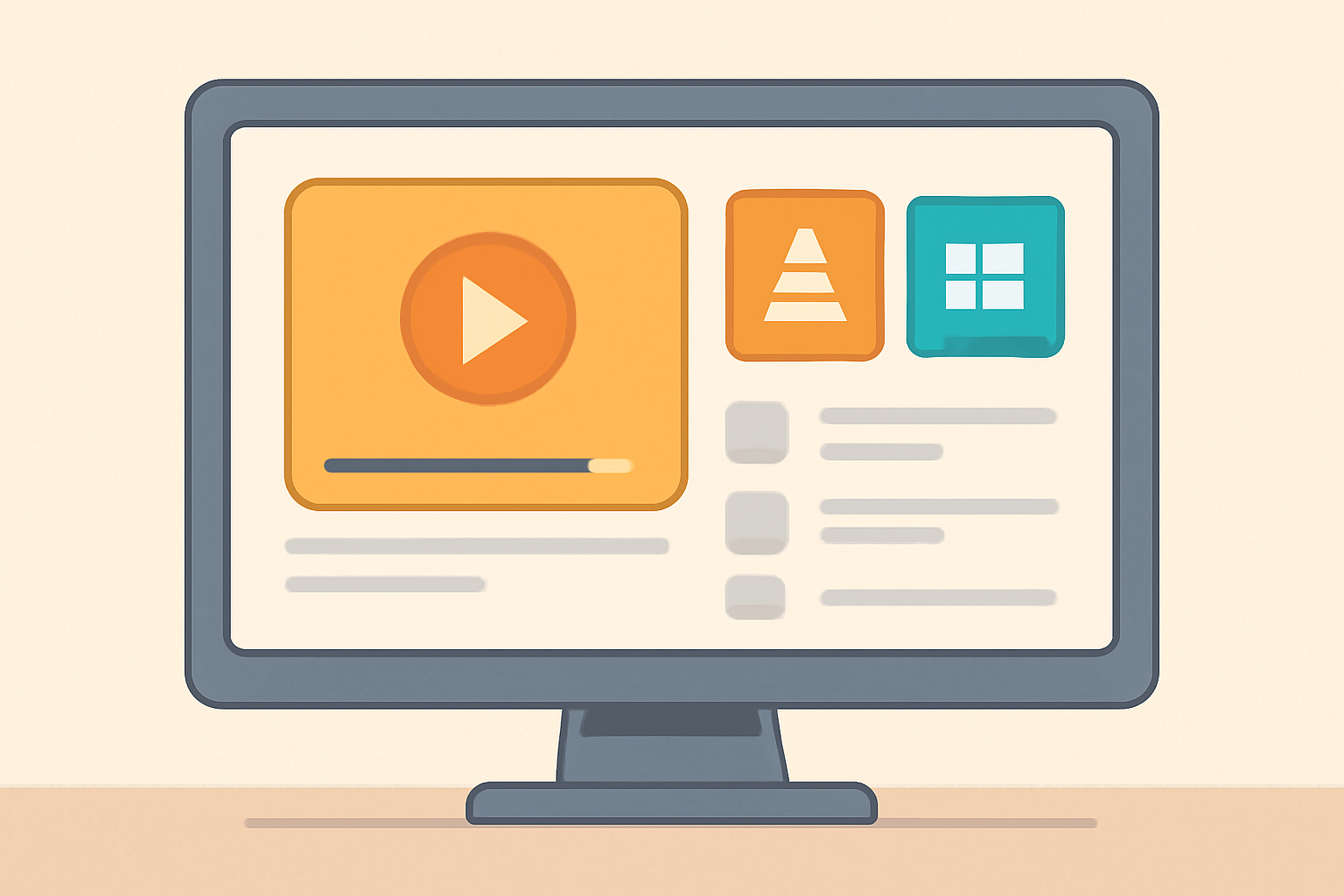
A solid iptv player for windows can be a simple download and setup that lets you load M3U playlists and start watching. If you want to build a reliable desktop setup, you should focus on licensed services, a player that handles M3U with minimal fuss, and clear documentation. This guide focuses on Windows and PC oriented options, with practical tips for loading playlists and keeping your streaming experience stable and private.
Why Windows users often choose a desktop iptv player
Windows PCs are widely used for streaming due to their processing power and flexible file handling. A good iptv player for windows will support a local M3U playlist, an EPG guide, and channel grouping so you can organize your streams by genre or network. On a desktop, you typically have more input options, bigger screens, and easier keyboard navigation than on mobile devices. A desktop setup is also a good place to test different providers and playlists before moving to a dedicated streaming device.
Before you pick a player, it helps to know what you want from the experience. Do you prefer a single window where you can switch channels quickly, or a more feature rich interface that brings in EPG data and catch up options? Do you need a simple free iptv player for windows or are you willing to pay for premium features, such as higher stability, ad free operation, or advanced video scaling? Answering these questions will help you compare options more efficiently. For a broader context on choosing legal services and avoiding unlicensed sources, check our guide on How to choose a legal IPTV service and the buyer checklist. These resources help you stay within legal bounds while enjoying a solid viewing experience.
How M3U playlists load on desktop
An M3U playlist is a plain text file that contains a list of streaming URLs and optional metadata. When you load an M3U into an iptv player for windows, the player reads the file and builds a channel list from the URLs it contains. The exact steps can vary by app, but the general process is similar:
Step by step loading
- Obtain a licensed M3U playlist from a reputable provider. Do not use pirated or unlicensed streams.
- Save the M3U file to a convenient location on your PC.
- Open your iptv player for windows and look for an option labeled something like Load M3U, Open Playlist, or Import.
- Navigate to the saved M3U file and select it.
- The player will parse the file and populate a channel list. If the M3U includes EPG data, you may need to configure an EPG URL or file within the player to see program guides.
- Start watching by selecting a channel from the list.
If the M3U contains invalid or offline streams, you will see broken links in the channel list. To minimize issues, use providers with current, reliable streams and ensure your network speed is sufficient for your chosen video quality. For a deeper look at program guides and how IPTV data is organized, see EPG explained.
Common issues and fixes
- Missing channels after load: The M3U might be outdated or contain broken links. Try a fresh M3U from a trusted source and refresh the playlist.
- Slow channel changes: This can be caused by network latency or server side limitations. Ensure your network is stable and try a lower video quality if available.
- EpG not showing: You may need to configure an external EPG URL in the player settings or install an EPG plugin if the app supports it.
- Buffering and stutters: Check your internet connection, router settings, and whether the IPTV service offers a low latency option or alternative streams at different bitrates.
For more on buffering and how to diagnose problems, you can consult our iptv buffering guide.
Desktop players you can rely on
There are several ways to approach an iptv player for windows. Some are general media players with IPTV capability, while others are purpose built for IPTV with solid playlist and EPG handling. Below we cover a few well known options and what to expect from each.
VLC media player
VLC is a free, open source media player that runs on Windows and many other platforms. It can load M3U playlists directly, and it works well for simple IPTV viewing when you have a valid playlist. VLC can handle streams encoded in a variety of formats and the interface is straightforward for users who want a quick watch. The M3U loading process is simple: open VLC, choose Open Network Stream or Open File, then select your M3U playlist. If you want to organize channels by groups like News, Sports, or Entertainment, you may need to rely on the channel names rather than a built in grouping feature.
Kodi with IPTV Simple Client
Kodi is a media center that runs on Windows and supports a wide range of add ons. For IPTV, you would typically install the IPTV Simple Client add on and point it to an M3U playlist. Kodi has a richer interface than VLC and can display EPG data when the provider supplies it. On a Windows PC, Kodi offers a consistent experience across devices and can be customized with skins and layouts. If you plan to use Kodi, be sure to configure the IPTV provider’s M3U and EPG data correctly to avoid missing channels or misaligned guides.
Other desktop options
There are other players and front ends that can load M3U playlists and work on Windows. Some of these apps are marketed as free iptv players for windows, while others are generic media players with IPTV support. When evaluating options, focus on a few practical criteria: how easy it is to load M3U playlists, how stable the streams are, whether the app provides an on screen guide, and whether you can export or back up your channel list. Always download only from official or trusted sources and avoid unlicensed stores.
Comparing features and suitability
To help you pick a good iptv player for windows, here is simple comparison data that highlights what matters most for desktop use. This table includes VLC, Kodi with IPTV Simple Client, and a general desktop player approach.
| Player option | Platform | M3U support | EPG support | Price | Notes |
|---|---|---|---|---|---|
| VLC media player | Windows, macOS, Linux | Yes, load M3U | Limited without addons | Free | Simple, reliable, broad format support. Best for quick testing of playlists. |
| Kodi with IPTV Simple Client | Windows | Yes, load M3U | Yes with proper EPG URL | Free | Great for a broader media center experience; best with curated add ons |
| Desktop IPTV front end (generic) | Windows | Yes via M3U | Varies by app | Free or paid depending on app | Picked for specific needs; check documentation for EPG and stability |
Understanding your exact needs can help you choose. If you want a lightweight, no fuss approach, VLC is a strong starting point. If you want an organized, visually rich experience with a proper TV style interface and a proper EPG, Kodi is likely the better option. For high end features, you might look at dedicated desktop apps that focus on IPTV, but ensure you are using licensed sources and avoid unlicensed streams.
How to choose a legal iptv solution for your Windows PC
Choosing a legal iptv service is essential to protect yourself and ensure a stable viewing experience. Start by identifying providers that publish clear terms of service, offer channels legally, and provide a public roster of channels. A reliable approach is to first assess the legality of an iptv service. Look for transparent licensing, a public channel list, and support for your region. There are guides that discuss legal considerations and how to evaluate services. For example, our guide on How to choose a legal IPTV service and the buyer checklist can help you compare options and avoid red flags.
If you are considering using a particular provider or a bundled IPTV service that comes with a dedicated app, read the provider reviews and check for official endorsements or certifications. It is important to avoid providers that promote Xtream Codes or Xtream panel access without proper licensing. If you want to compare multiple options, you can consult our Best IPTV Player Review: Comparing Tivimate Smarters and XCIPTV to understand how modern interfaces approach M3U and guide data on different platforms. Remember that the Windows desktop environment is capable of hosting multiple players, so you can test more than one to see which interface you prefer.
Privacy and network considerations
Streaming over IPTV can expose your network to additional data traffic. If privacy is a concern, consider using a VPN that you trust to protect your connection when you load playlists and watch streams. A VPN can hide your traffic from local networks and protect your viewing habits from casual observation. You can also review our VPN and Privacy section for guidance on safe browsing and streaming practices. When you are evaluating a streaming setup, you should also consider your router and WiFi network performance, especially if you are using wireless connections. For more on how to optimize your network for IPTV, see our article on IPTV buffering and how to fix it, as well as general device guides for the best home streaming setup. You can also learn how to select a legal IPTV service and how to avoid common red flags in the provider space.
External sources can provide additional context on network standards and streaming practices. For instance, the Wi Fi Alliance offers information about secure wireless networking and how it interacts with streaming devices Wi-Fi Alliance. If you want more background on streaming protocols and how IP TV ratings work, Wikipedia has entries explaining IPTV and related technologies IPTV on Wikipedia. These sources can help you understand the underlying technology while you focus on choosing a reliable iptv player for windows.
Practical tips for a smooth desktop experience
- Start with VLC to validate your M3U and ensure streams load correctly. If you prefer metadata and channel grouping, move to Kodi with IPTV Simple Client.
- Keep your playlist sources up to date. A stale M3U file leads to missing channels and frustration.
- Maintain a clean playlist directory. Back up your M3U files and any associated EPG URLs so you can recover quickly if something changes.
- Verify the legality of your streams. Use licensed providers and review our buyer checklist to avoid unlicensed sources. If you want to compare providers, see Best IPTV Service: Buyer Checklist Guide and How to choose a legal IPTV service.
- If you encounter buffering, rule out local network issues first. Then check the provider’s server status and consider lowering the stream quality. For more help on buffering, see our related guide.
Real world setup example
A practical setup for Windows might be:
- Install VLC media player from the official site.
- Obtain a legitimate M3U playlist from a licensed IPTV provider.
- Open VLC, click Open Network Stream, and paste the M3U URL or select a saved M3U file.
- If you want a more structured TV style interface, install Kodi and add IPTV Simple Client, then load the same M3U playlist.
- If you want to explore with a dedicated desktop app later, explore a few options and compare features like EPG support, UI responsiveness, and stability. You can compare the options we review in our Best IPTV Player Review article to see which interface you prefer. For guidance on legal considerations during this transition, check our How to choose a legal IPTV Service guide.
Bottom line
Choosing the right iptv player for windows means balancing ease of use, playlist handling, and legal access to streams. VLC offers a straightforward route for testing M3U playlists on Windows, while Kodi provides a more immersive, organized experience if you want a fuller home theater style interface. Always load playlists from licensed sources, respect regional rights, and keep your system updated for security and performance. If you want more guidance on evaluating IPTV services and tools, consult our buyer guides and the reviews that compare different players to find the best fit for your Windows PC.
Bottom line
- Start with a trusted, license compliant provider and test with VLC.
- If you want a richer interface, upgrade to Kodi with IPTV Simple Client.
- Keep legal and privacy considerations in mind and use a privacy aware setup for streaming.
Check our related guides to deepen your understanding while you decide on an iptv player for windows. For deeper comparisons and practical testing, read our Best IPTV Player Review: Comparing Tivimate Smarters and XCIPTV and our How to choose a legal IPTV service guide along with the IPTV device guidance we offer. You may also want to explore our IPTV section and the device guides for more context on how Windows fits into a broader streaming setup.
Frequently Asked Questions
What is an iptv player for windows?
A software program on Windows that plays IPTV streams from M3U playlists or Xtream codes.
Can I use VLC as an iptv player for windows?
Yes. VLC is a versatile, free media player that can load M3U playlists for IPTV on Windows.
Is loading M3U playlists on desktop secure?
Load only licensed, legitimate playlists from trusted providers and verify the source.
This is an independent editorial site. We do not host, sell, or distribute any streams or subscriptions. Always verify that a service is properly licensed in your country. Some links may earn us a commission at no cost to you.